Features · What they receive

What arrives on the other end.

Your crew and clients get an email from your company, a page that works on a phone, and a PDF. Here is all of it, captured from the sandbox as sent.

the crew member’s inbox · Call Sheet — Fireside Chat, Ep. 4
The call sheet email as it arrives: the company name, a greeting by first name and the message, then a Your day card with the person's own call time, start location, shoot times, date, role and contact, a View online button and a Confirm — I'll be there button, and the full call sheet beneath
The call sheet email. Their own day is the first thing in it; the whole sheet follows, and the PDF is attached.
00 · FROM KITSLATE ITSELF — the account emails, before any job

Before any of that: the invitation.

Only the invitation, the waitlist note and the plan-ending warning come from KitSlate. Everything else comes from your company.
One tap, no password to inventAccept and sign in with the same email. The Profile plan is free.
The sandbox first, if they likeBoth emails link to the sandbox, with nothing to undo.
A seat is a real loginA team member’s invitation comes from your company and expires in 14 days.
An unsubscribe that holdsAnyone who unsubscribes is not emailed again.
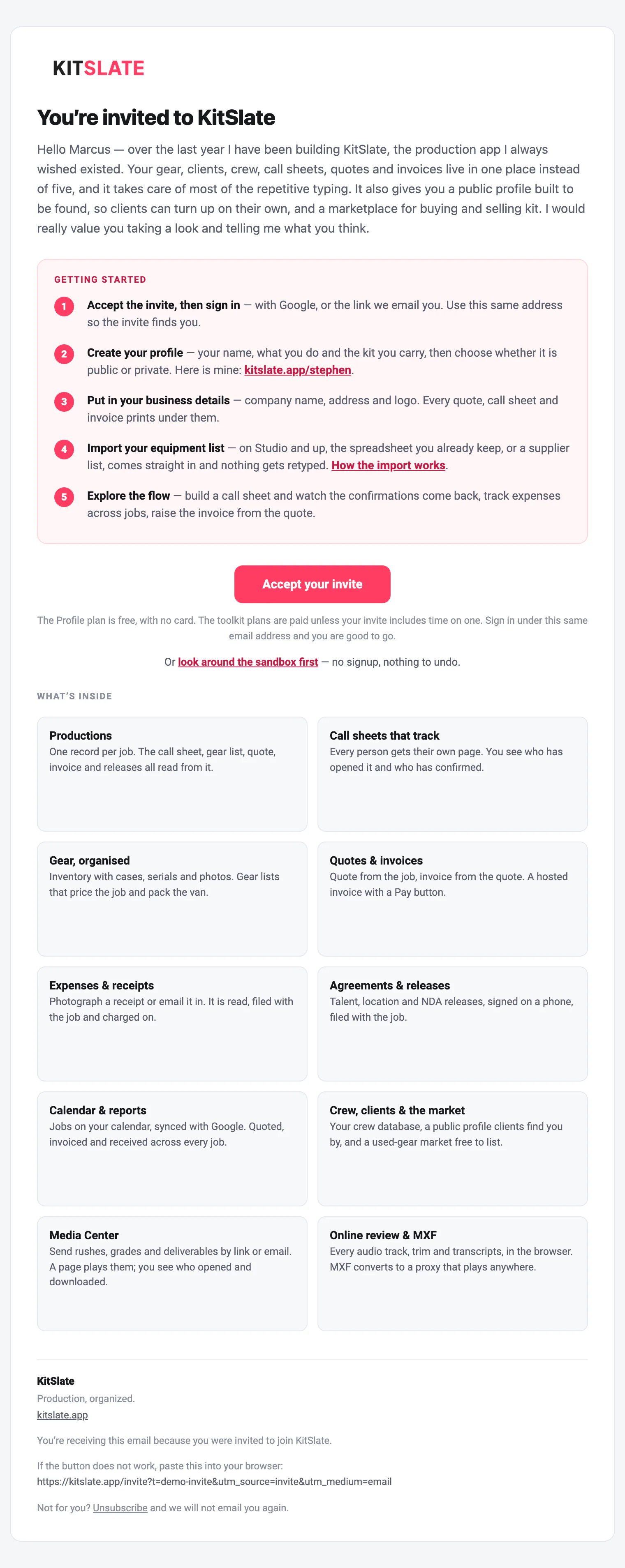
You’re invited to KitSlate
The KitSlate invitation email: the wordmark, You're invited to KitSlate, a personal note from Stephen, five Getting started steps (accept and sign in, create your profile, business details, import your equipment list, explore the flow), the Accept your invite button and the sandbox link, then a grid of nine tiles, one per feature area.
The invitation. Five steps in order, one button, and the sandbox for anyone who wants to look first.
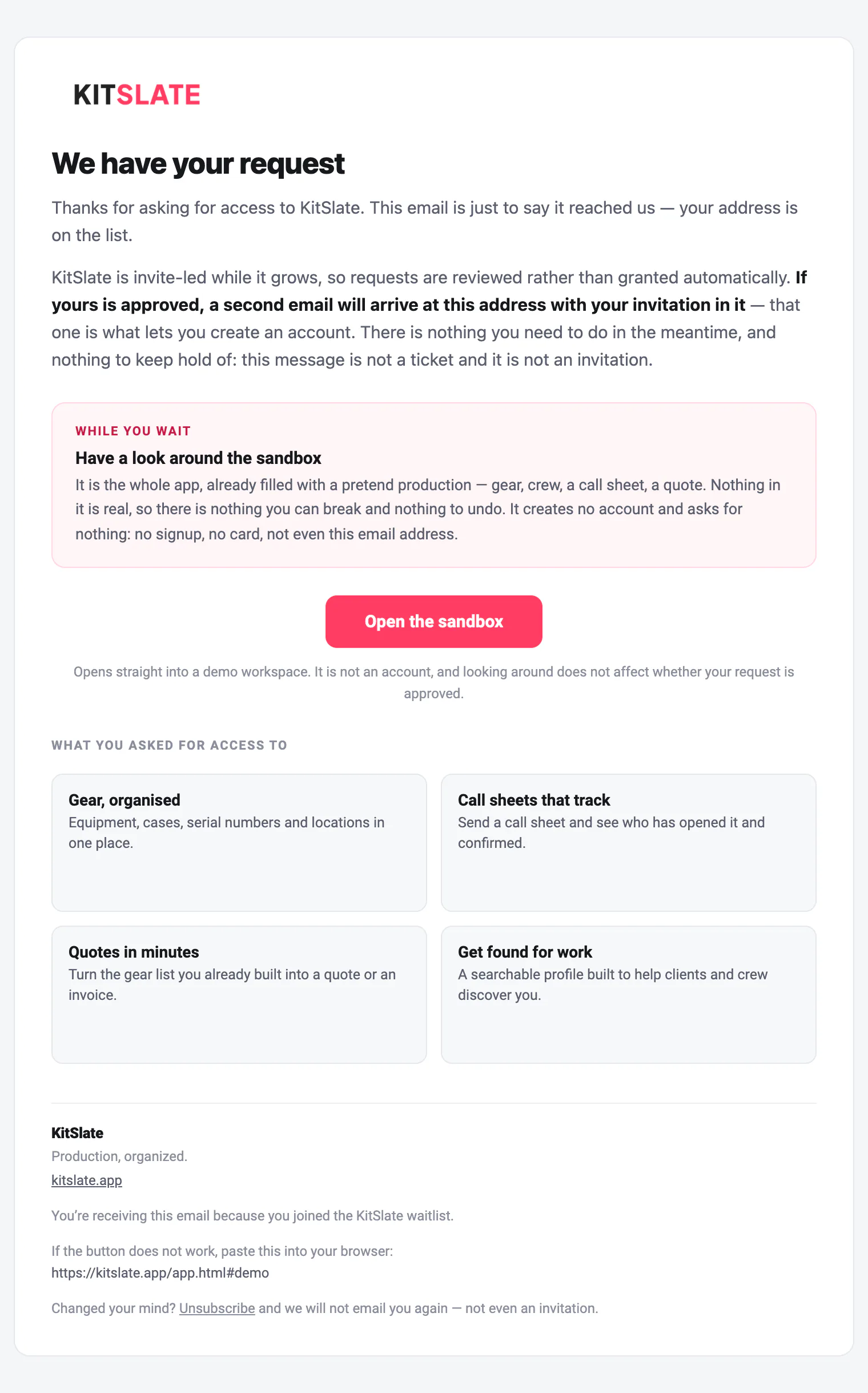
We have your KitSlate request
The waitlist email: We have your request, a note that requests are reviewed and a second email brings the invitation, a While you wait box about the sandbox with an Open the sandbox button, four tiles naming what was asked for, and the footer with the unsubscribe line
The note a request for access gets back. It says plainly that it is not a ticket and not an invitation.
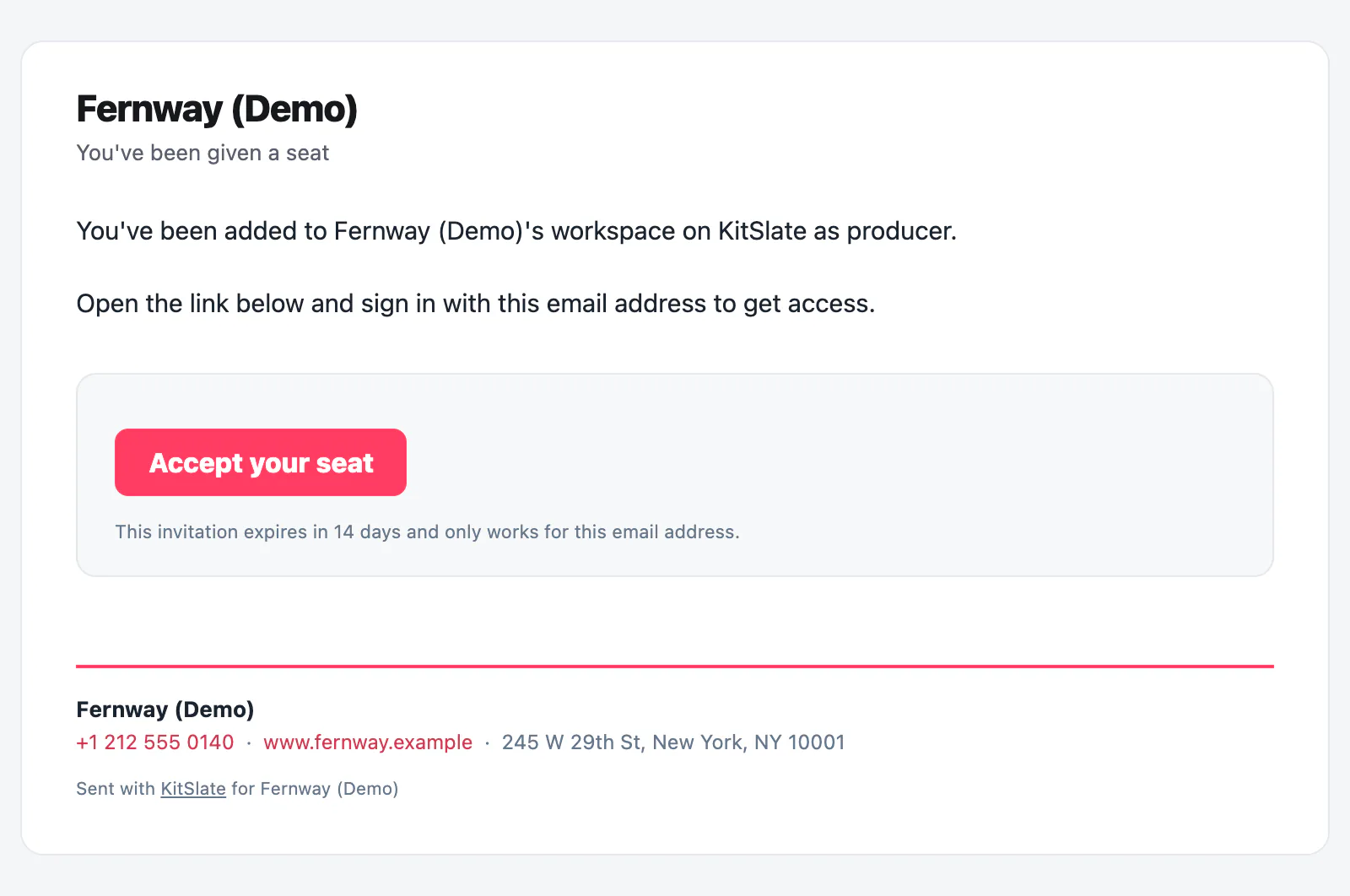
Copperline (Demo) — you’ve been added to the workspace
The seat invitation from a company: You've been given a seat, a line saying the person has been added to the company's workspace on KitSlate as producer, an Accept the invitation button, and a note that it expires in 14 days and only works for that email address
The seat invitation. From the company, with the role named, expiring in 14 days.
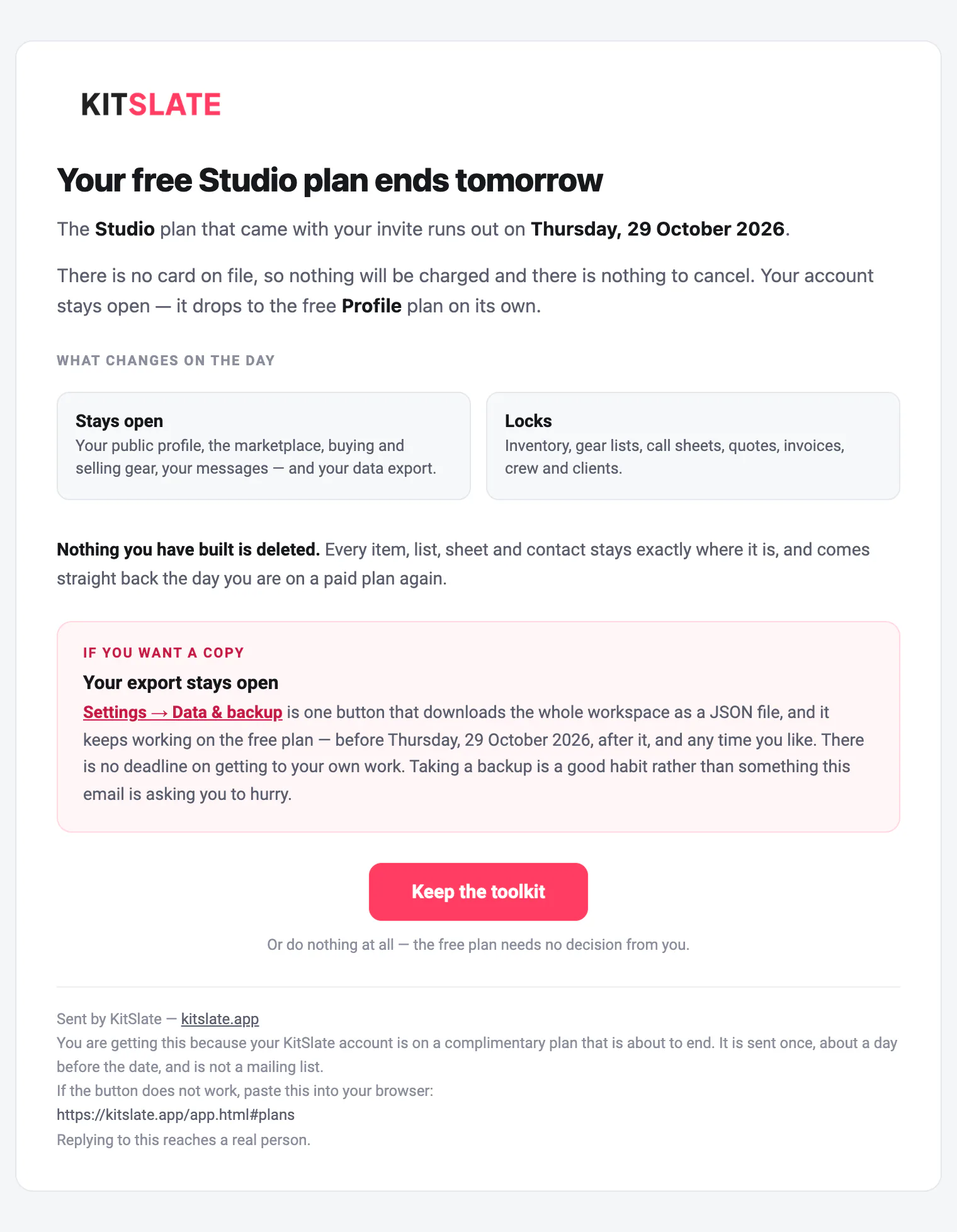
Your free three months of KitSlate end tomorrow
The comp-ending email: Your free three months end tomorrow, the plan and the date, what stays open and what locks, a note that nothing built is deleted, an If you want a copy box about the export, a Keep the toolkit button and a line saying the free plan needs no decision
The only warning a complimentary plan gets: what changes, what stays, and that nothing is deleted.
01 · THE CALL SHEET — one email per person, their own day first

Their call, their location, one tap to confirm.

Each person gets their own message, their call time first. Confirm — I’ll be there tells you they have it.
From your company, not from KitSlateIt comes from the company on the letterhead, and replies come to you.
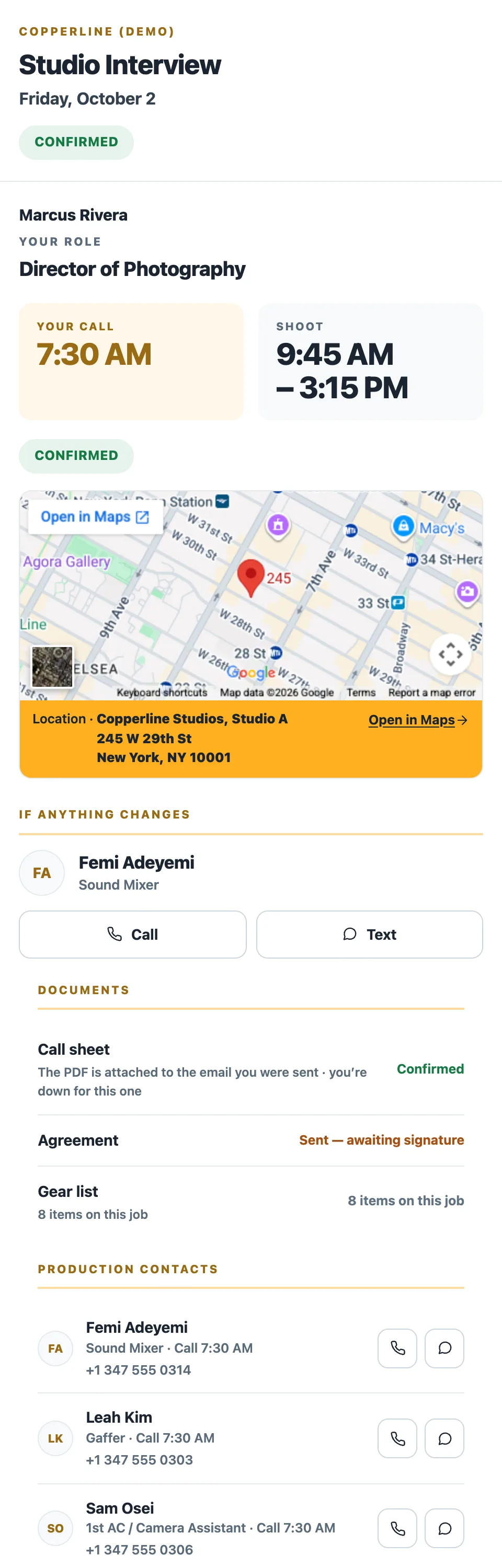
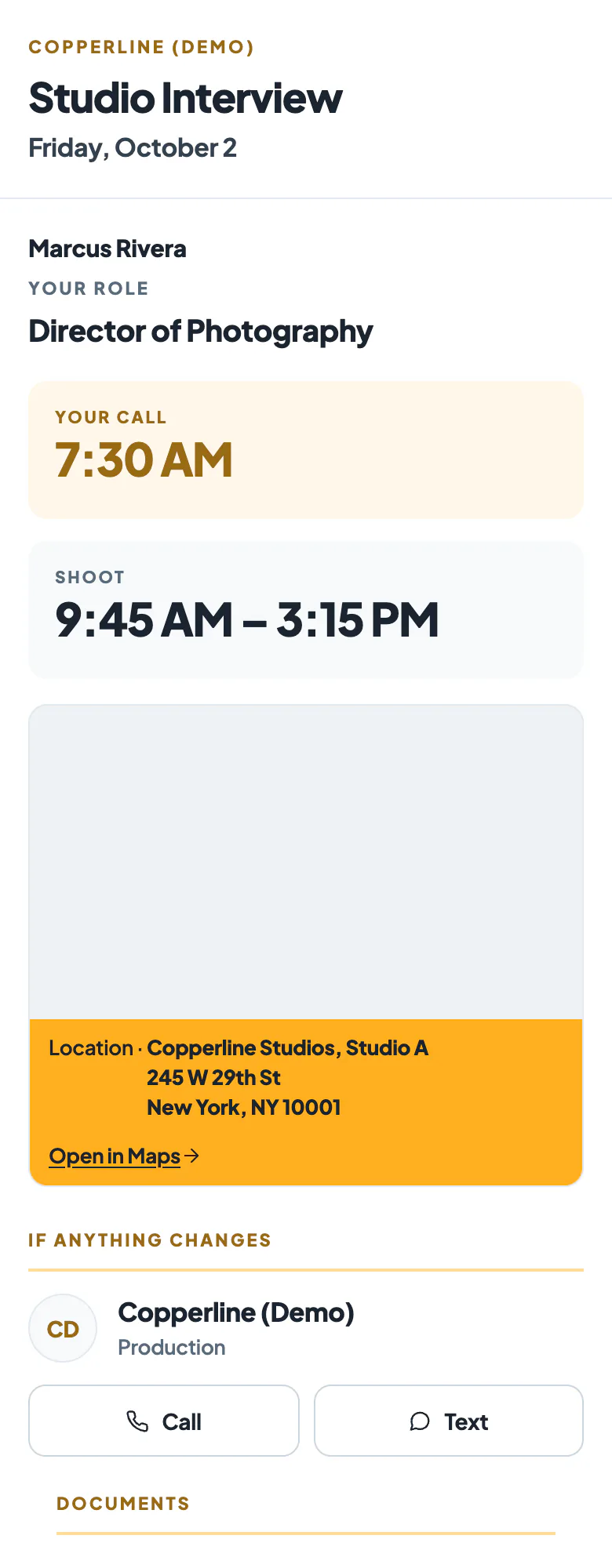
The page works on a phoneTheir call, a confirm bar, the map, who to call and their documents. Nothing to install.
The PDF is attachedThe same sheet you previewed, with every email.
Confirmed comes back to youThe tap shows as Confirmed on your status card, with the time.
kitslate.app/p/… · on their phone
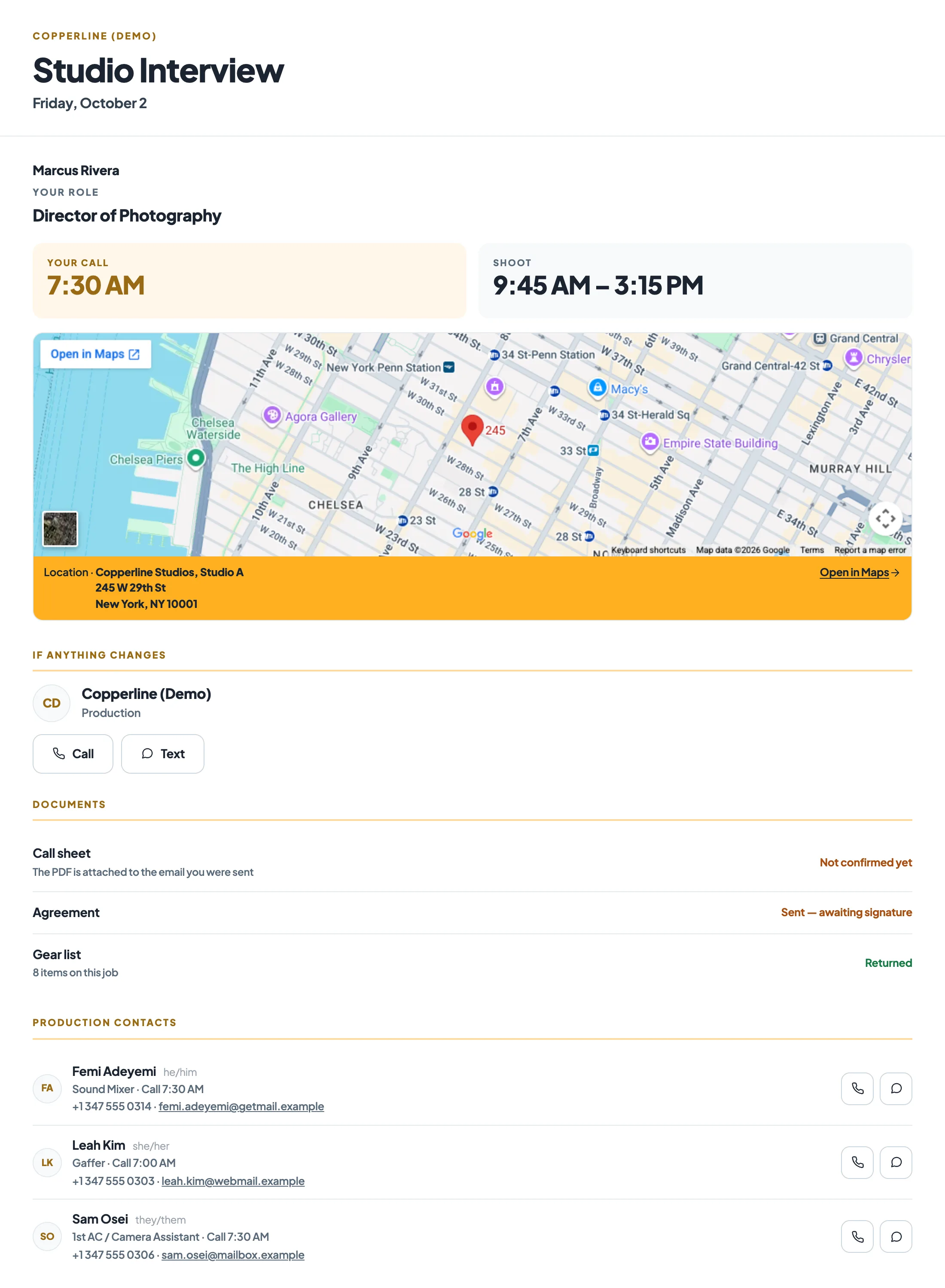
The crew member's page on a phone: the production and date, their role and call time, a Confirm you have this bar with a Confirm call sheet button, the map with an Open in Maps button and the address, an If anything changes card with Call and Text buttons, the Documents list, and the production contacts — screen 1 of 3
… scrolled
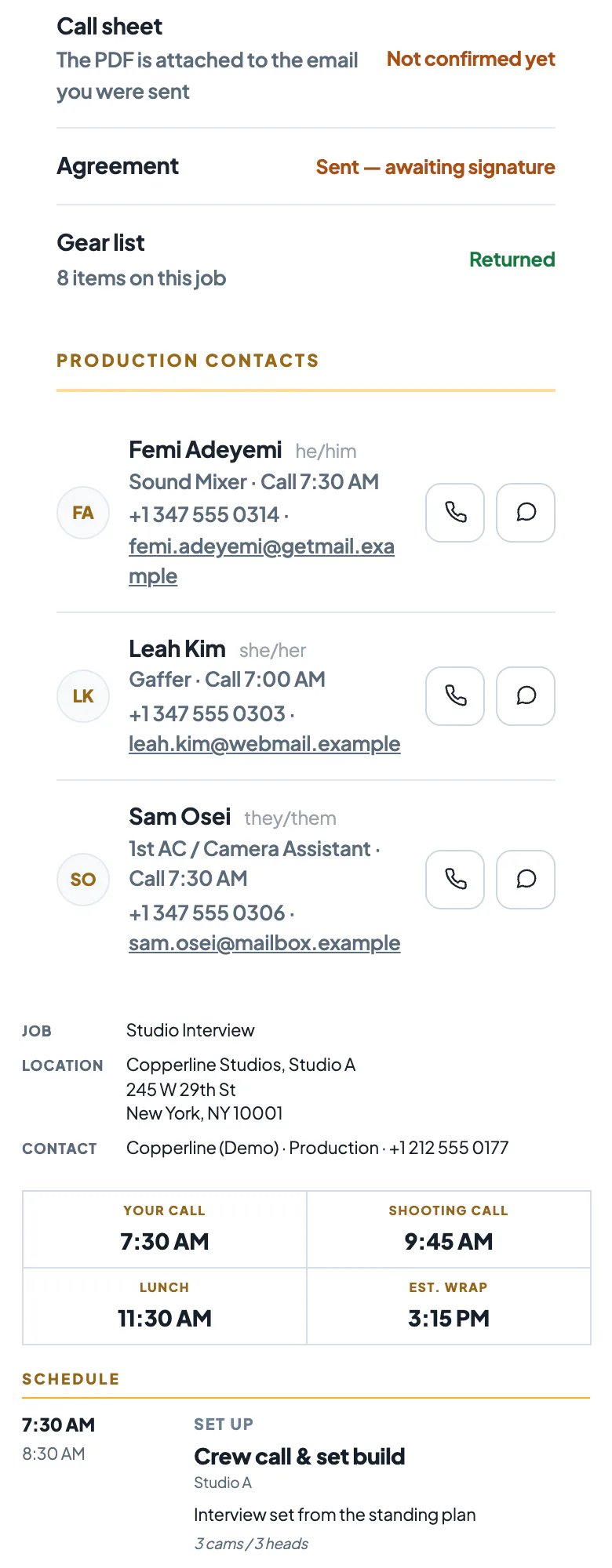
The crew member's page on a phone: the production and date, their role and call time, a Confirm you have this bar with a Confirm call sheet button, the map with an Open in Maps button and the address, an If anything changes card with Call and Text buttons, the Documents list, and the production contacts — screen 2 of 3
… scrolled
The crew member's page on a phone: the production and date, their role and call time, a Confirm you have this bar with a Confirm call sheet button, the map with an Open in Maps button and the address, an If anything changes card with Call and Text buttons, the Documents list, and the production contacts — screen 3 of 3
The page the email opens: their call, the map, who to call and their documents.
kitslate.app/p/… · after the tap
The top of the crew member's page after tapping Confirm: the production, their role and call, and the confirm bar replaced in place by a CONFIRMED chip
After the tap: the bar becomes a Confirmed chip, and your status card shows the same.
kitslate.app/p/… · on a laptop
The same page on a laptop: the production and date, the recipient's role and call time, the location with a maps link, who to call if anything changes, and their documents
The same page on a laptop. One responsive page, not a separate mobile copy.
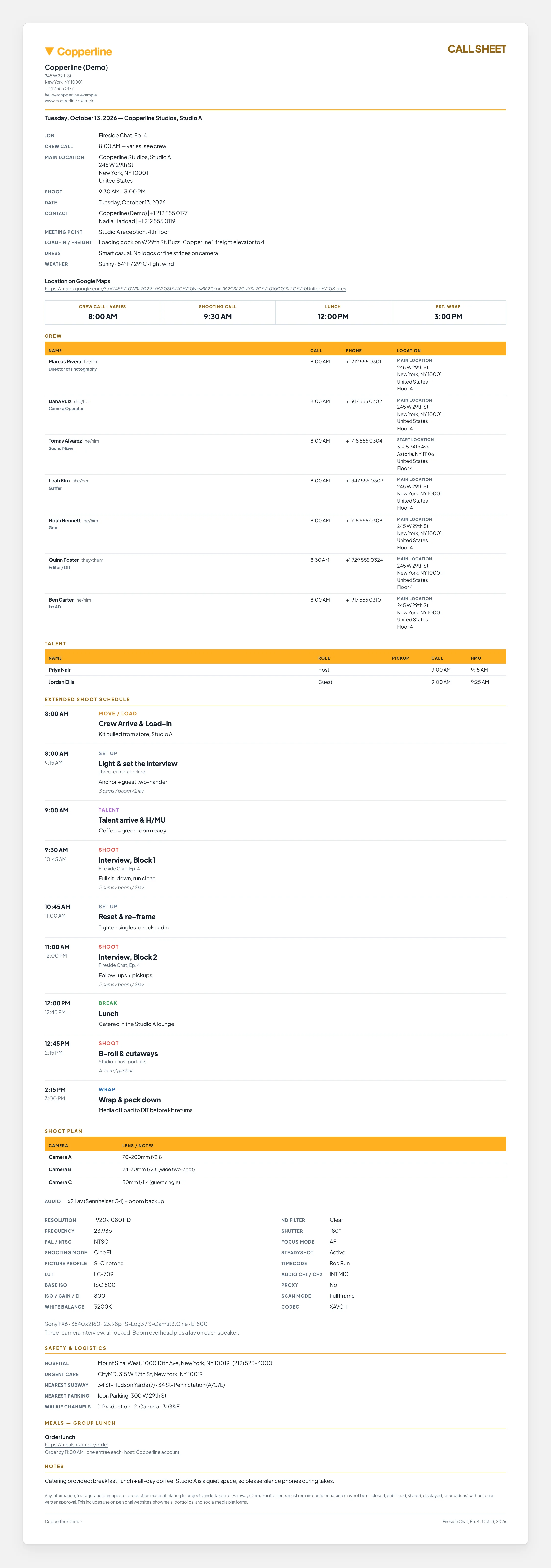
Call-sheet.pdf · attached to every email
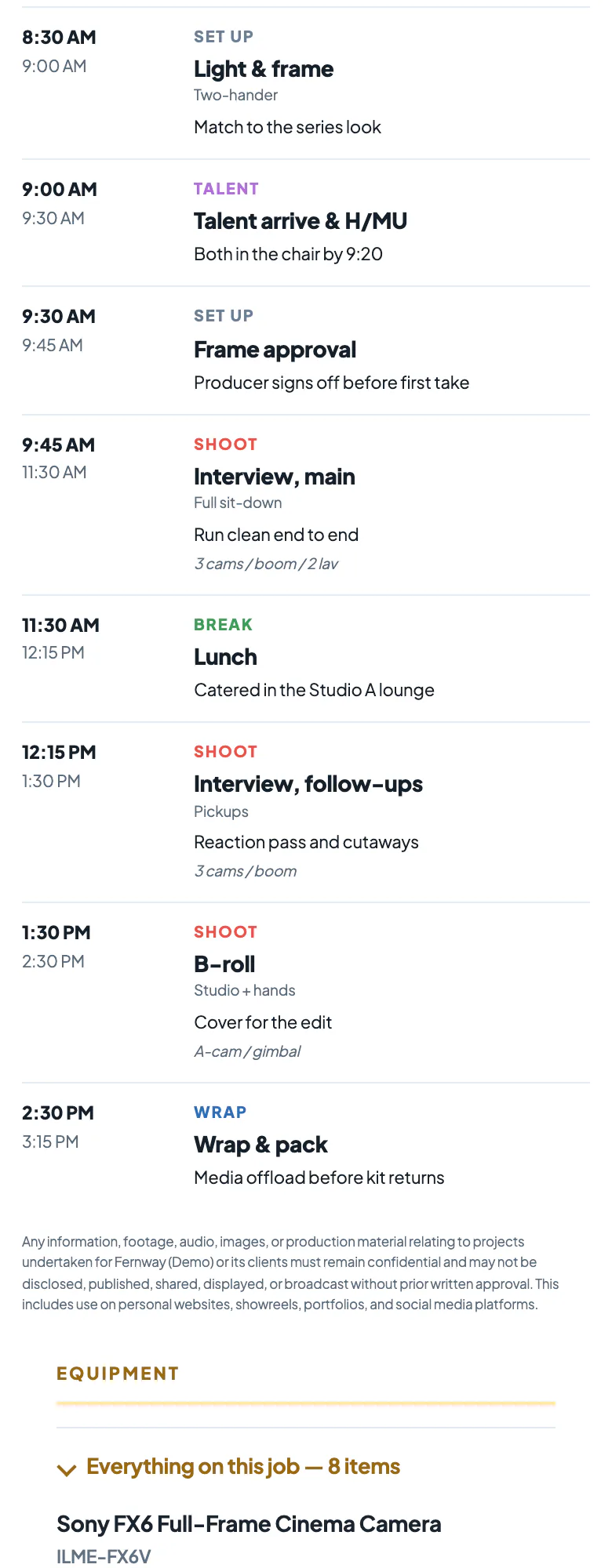
The call sheet as a PDF: the production, date and venue across the top, the key times, the crew table with calls and locations, and the schedule
The PDF attached to each person's email. The same sheet you previewed in the editor.
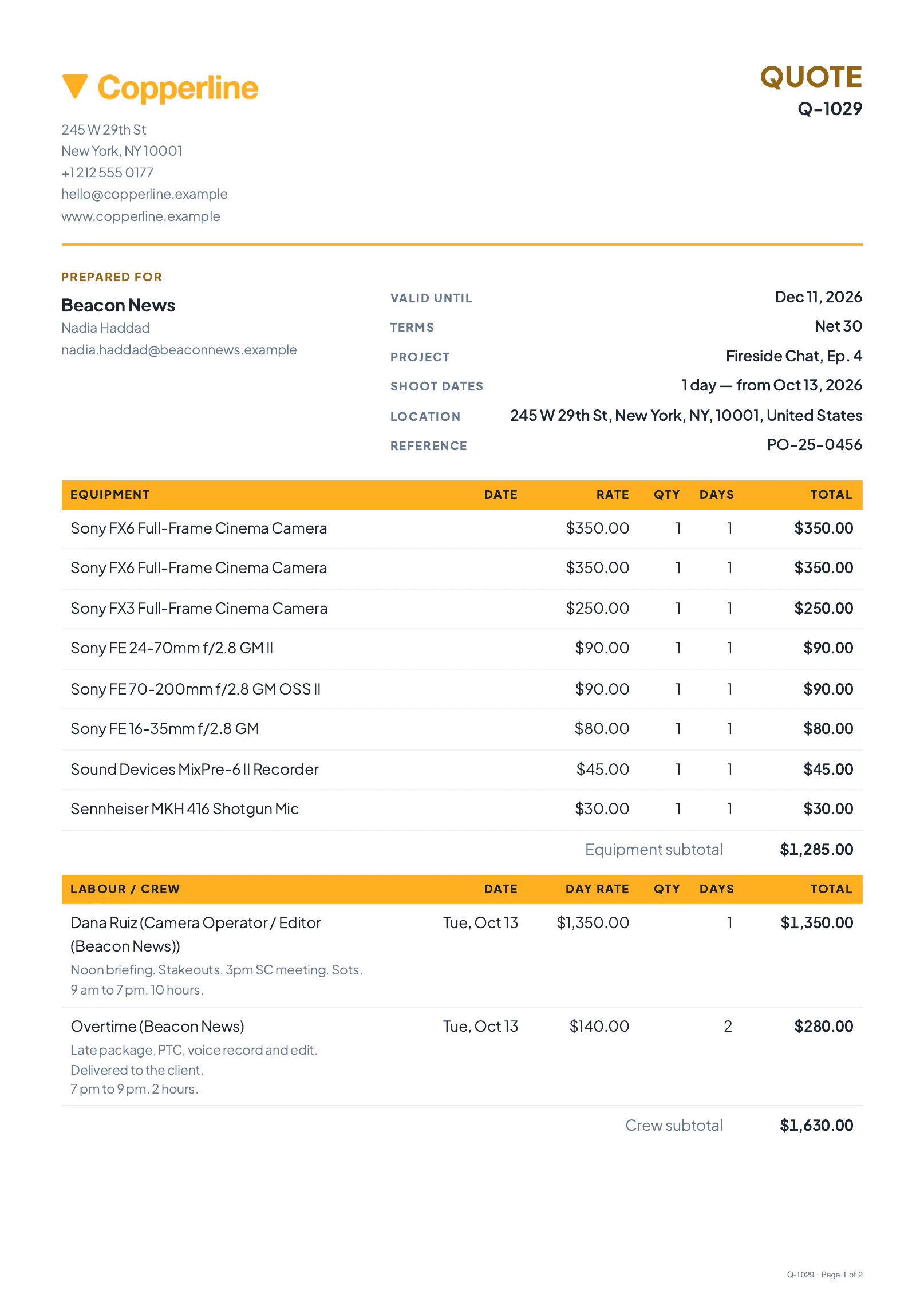
02 · THE QUOTE — the number, the date it holds until, the PDF

A quote that reads in one glance.

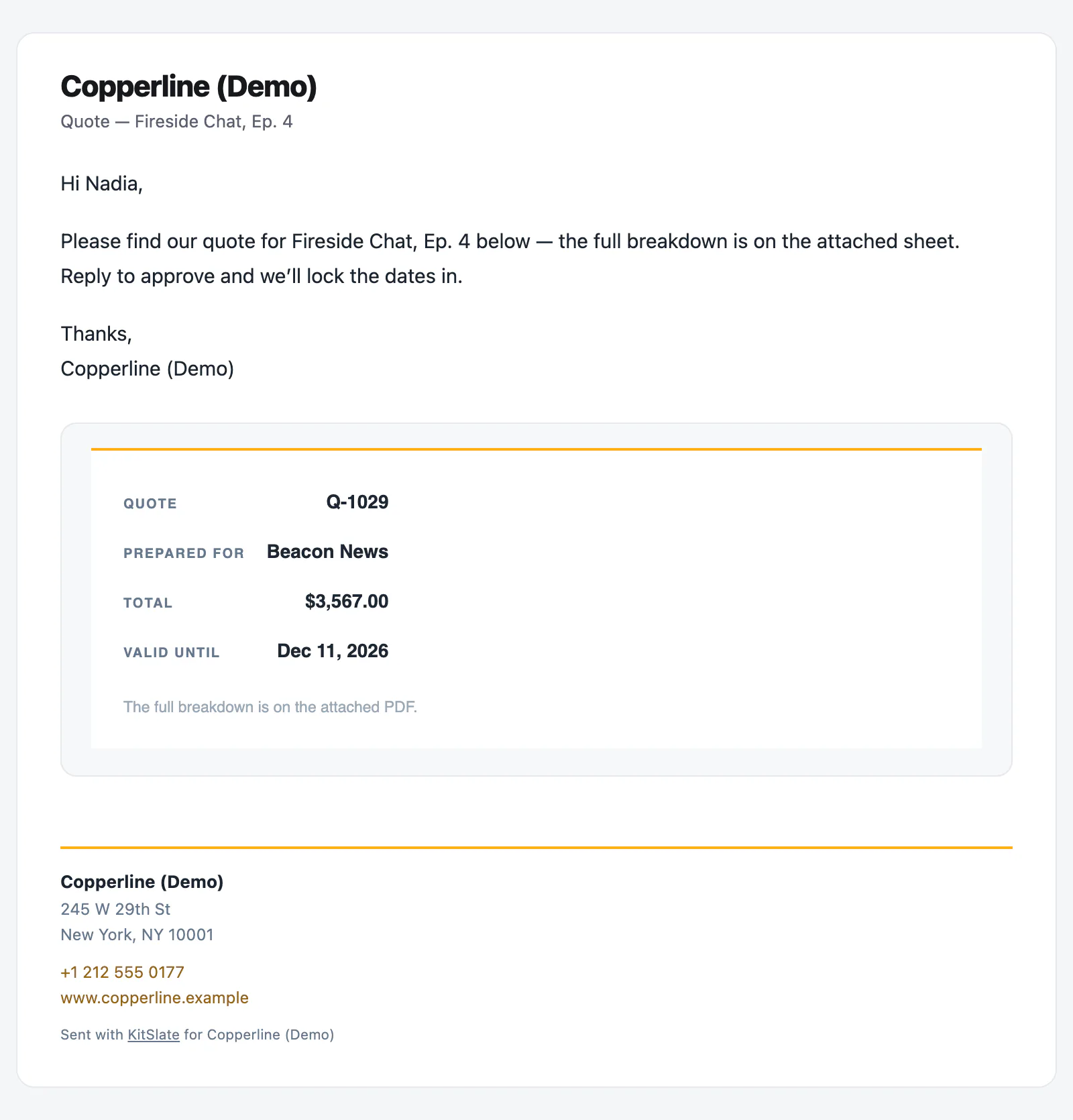
The quote number, who it is for, the total and the valid-until date. The PDF carries the sections.
Your wordingYour greeting and message, saved per document type.
Approval by replyThe client replies, you mark it approved, and the invoice is one click away.
The footer is your companyYour phone, website and address. KitSlate is one small line at the bottom.
the client’s inbox · Quote — Fireside Chat, Ep. 4
The quote email: the company name and Quote — Fireside Chat, Ep. 4, a greeting by first name and the message, then a card with the quote number, who it is prepared for, the total and the valid-until date, a note that the full breakdown is on the attached PDF, and the company's details in the footer
The quote email. The number, the client, the total and the valid-until date.
Quote.pdf
The quote as a PDF, printed from the same document
The PDF, printed from the same document.
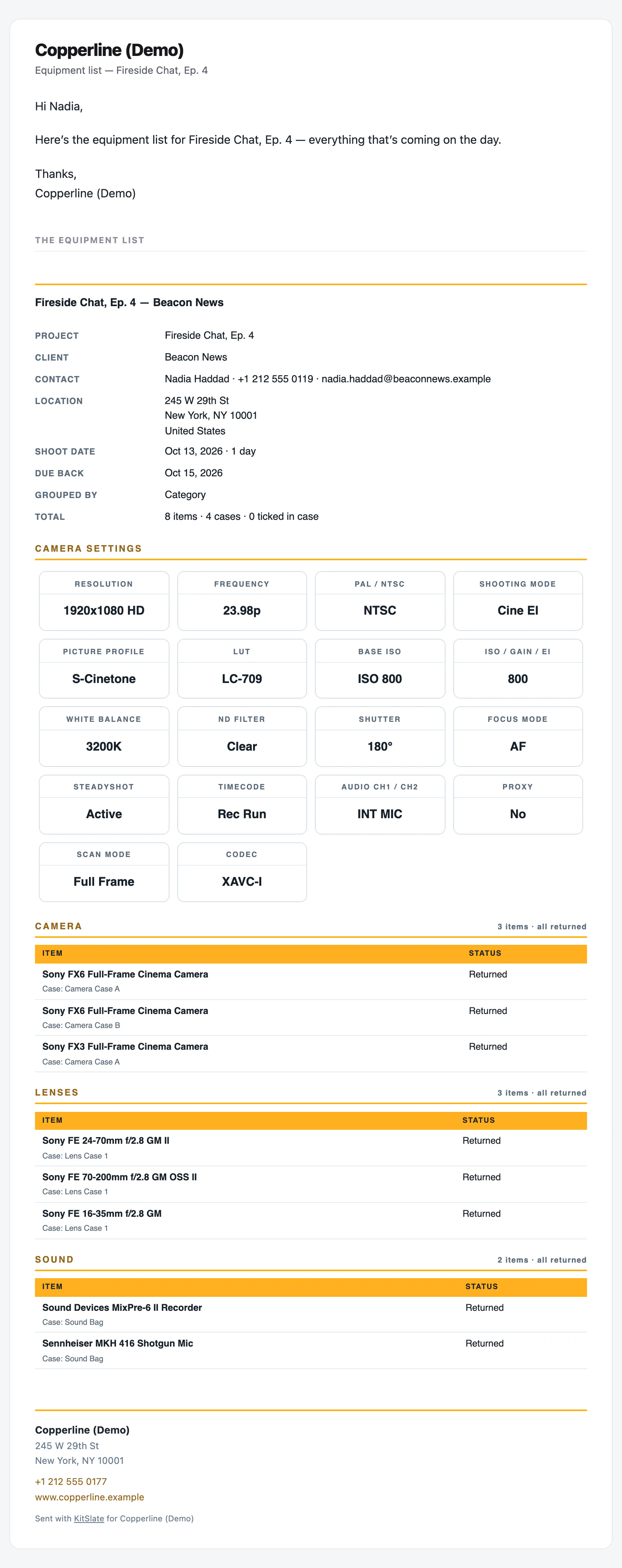
03 · THE EQUIPMENT LIST — what is coming on the day

The gear, category by category.

Project, contact, location and dates at the top, then every category with its items and status.
Serials stay insideSerials and rates stay on your copy.
Returned, missing, faultyEach row’s packing state prints, so it works as a returns list.
the client’s inbox · Equipment List — Fireside Chat, Ep. 4
The equipment list email: the company name and Equipment List — Fireside Chat, Ep. 4, a greeting and the message, then the list itself with project, client, contact, location, shoot date, date returned, grouping and totals, the camera settings, and the categories with their items and status
The equipment list email, with the whole list in it.
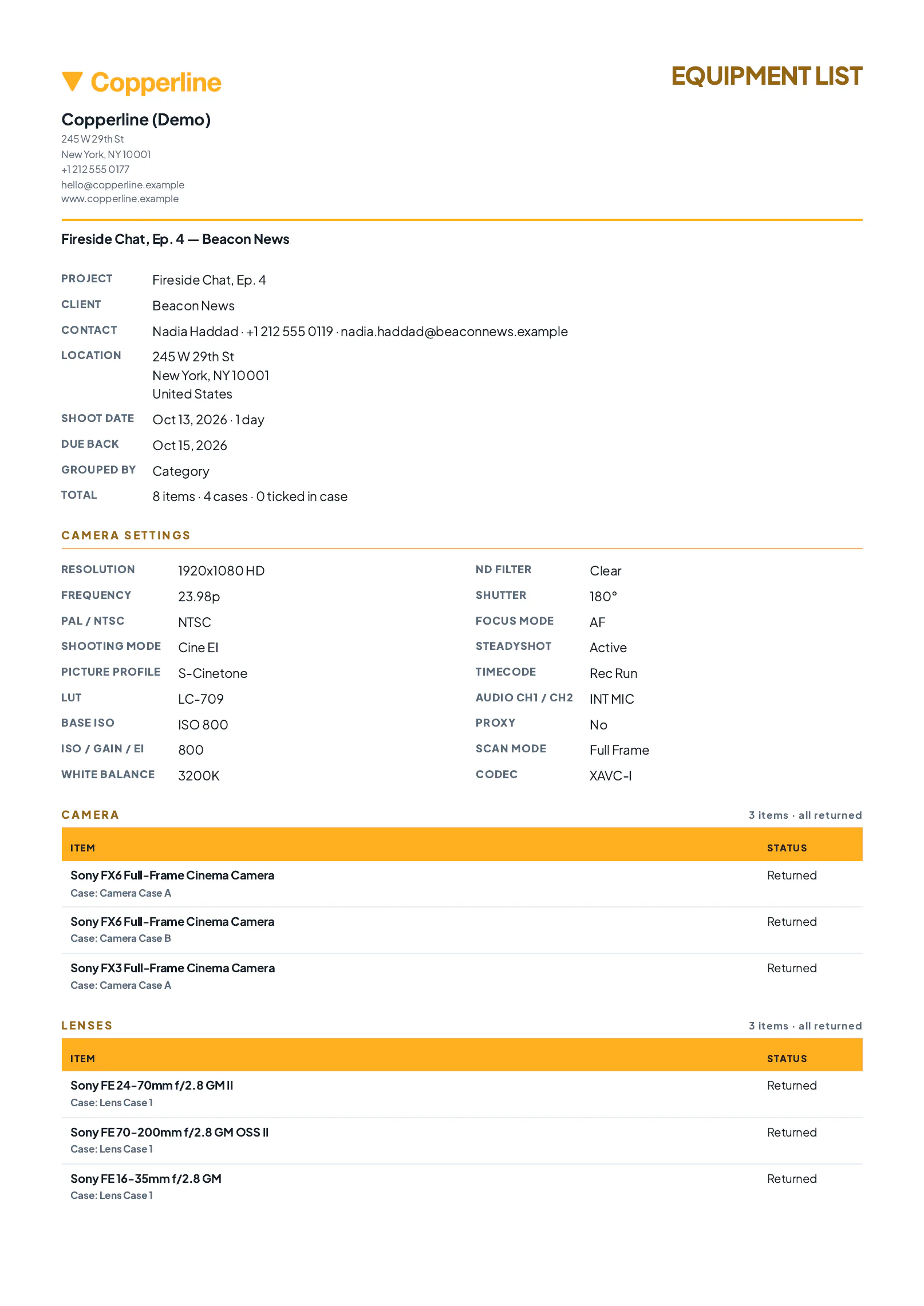
Equipment-list.pdf
The equipment list as it is sent: the categories and rows on one page
The PDF: only the details left switched on.
04 · THE AGREEMENT — read and signed on a phone

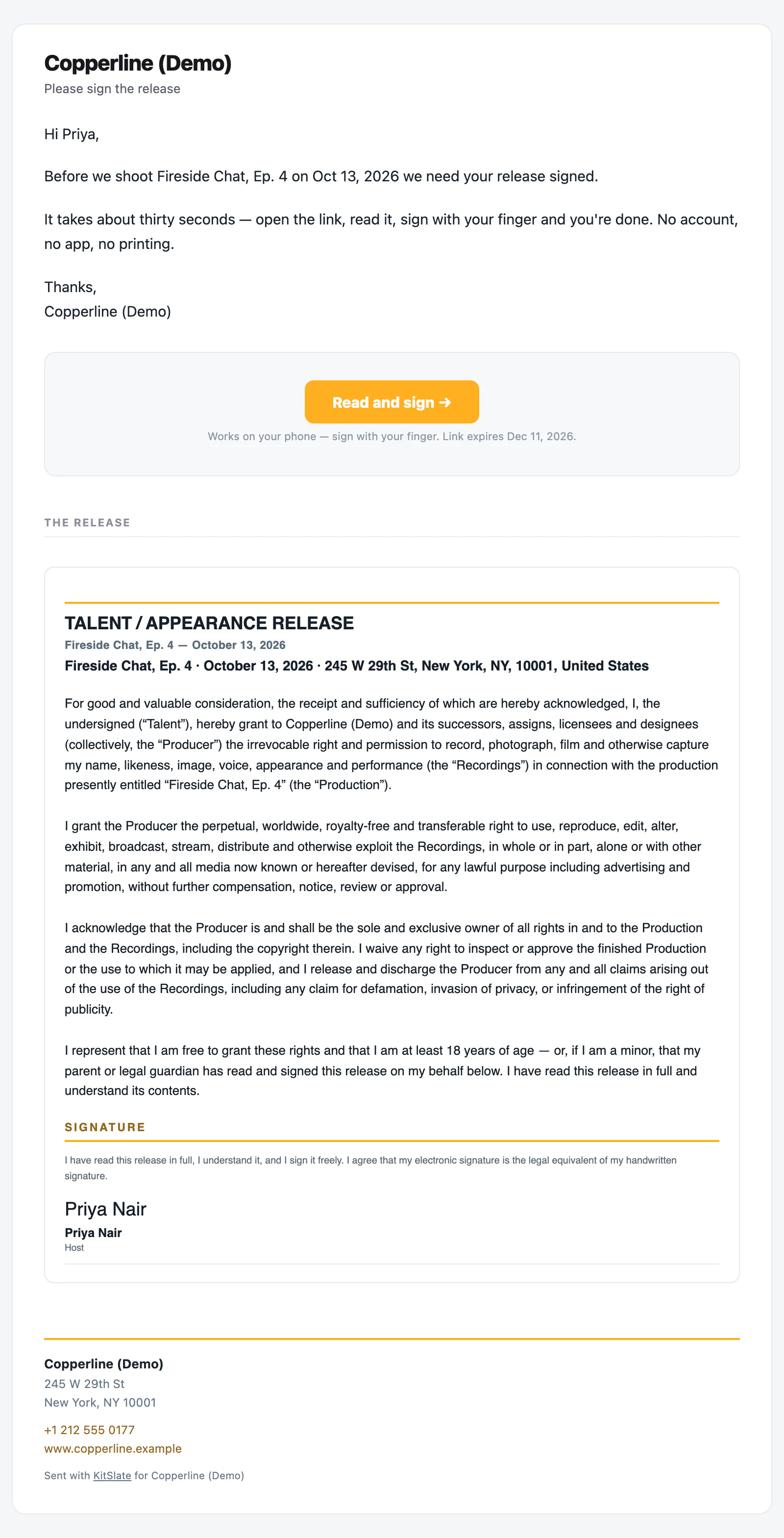
The release, a place to sign, a copy to keep.

The whole release sits under a Read and sign button. They sign with a finger or by typing.
One private link per signerEach signer gets their own link, with its expiry printed in the email.
They keep a copyThe signed copy is emailed to them, and the page becomes their receipt.
Sent, viewed, signedEach state comes back with a time, name by name.
Kept exactly as signedThe PDF you file is the text they saw, not a re-render.
the signer’s inbox · Please sign the release
The release email: the company name and Please sign the release, a Read and sign button with a note that it works on a phone and when the link expires, then the full talent / appearance release text beneath a THE RELEASE heading
The agreement email. The button first, the whole release beneath it.
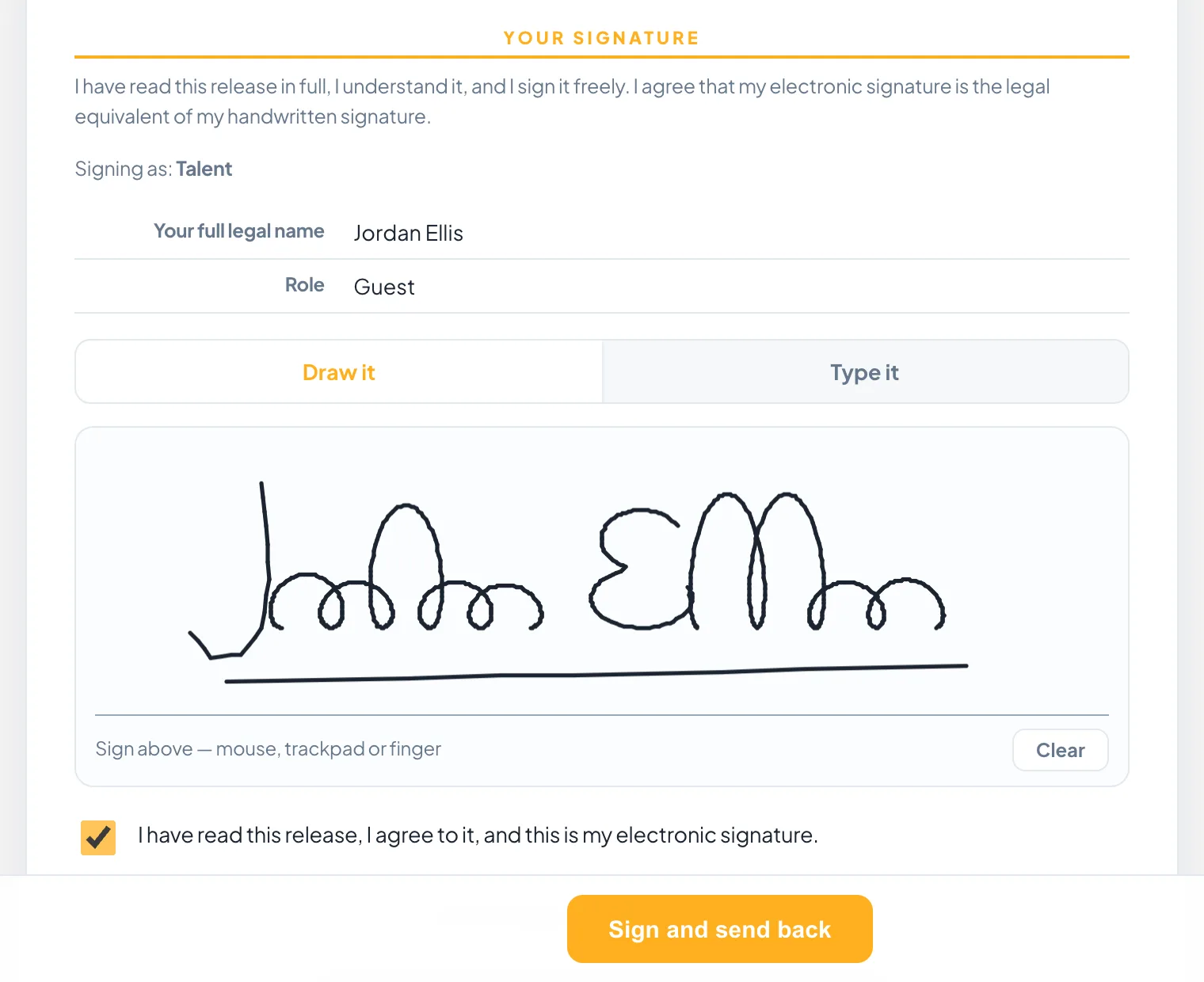
kitslate.app/sign · one private link per signer
The signing page a recipient opens: the consent statement, who they are signing as, their name and role, a signature drawn in the pad and the agreement ticked
The signing page, on a phone: the statement, the pad, Agree.
kitslate.app/sign · after signing
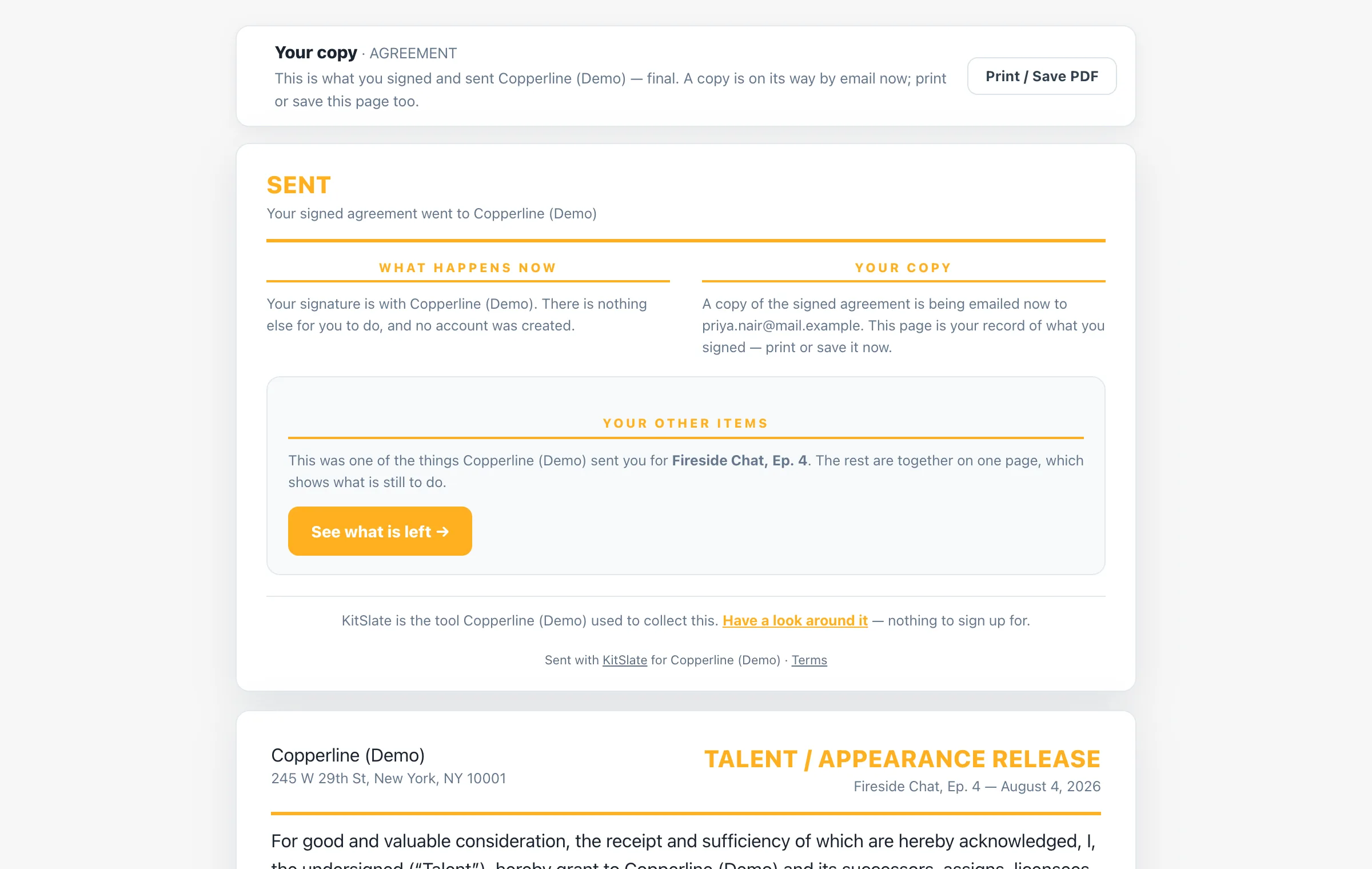
A signer's receipt after submitting an agreement: a Your copy banner with a Print / Save PDF button, a SENT card with What happens now and Your copy, and the signed release beneath
What the signer sees the moment they submit: their copy, and what happens next.
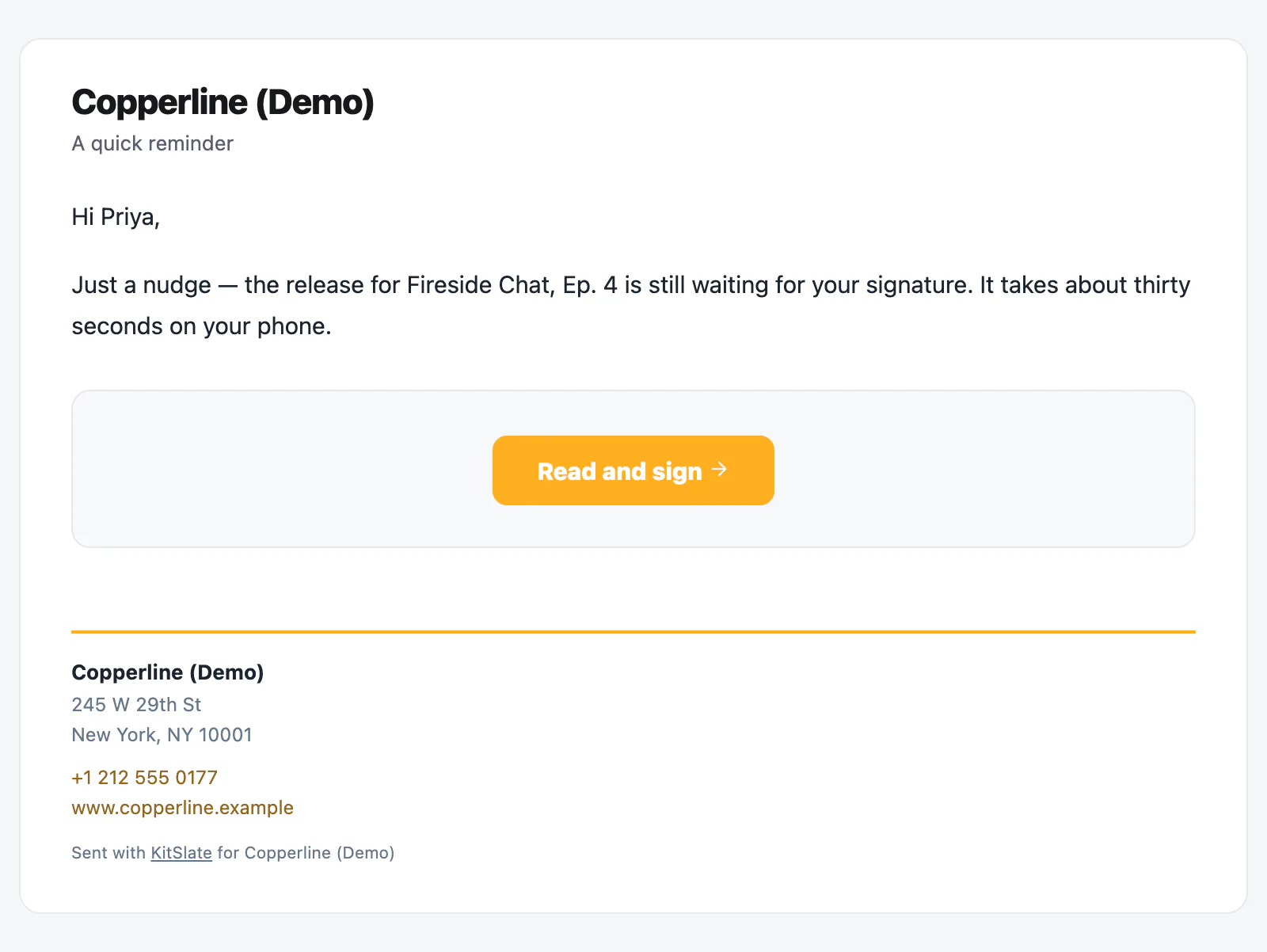
the signer’s inbox · Reminder — release for “Fireside Chat, Ep. 4”
The reminder email: the company name and A quick reminder, a greeting, a line saying the appearance release is still waiting for their signature and takes about thirty seconds on a phone, and a Read and sign button
The nudge. One click on the status card sends it; the same link, the same page.
Release.pdf · as signed
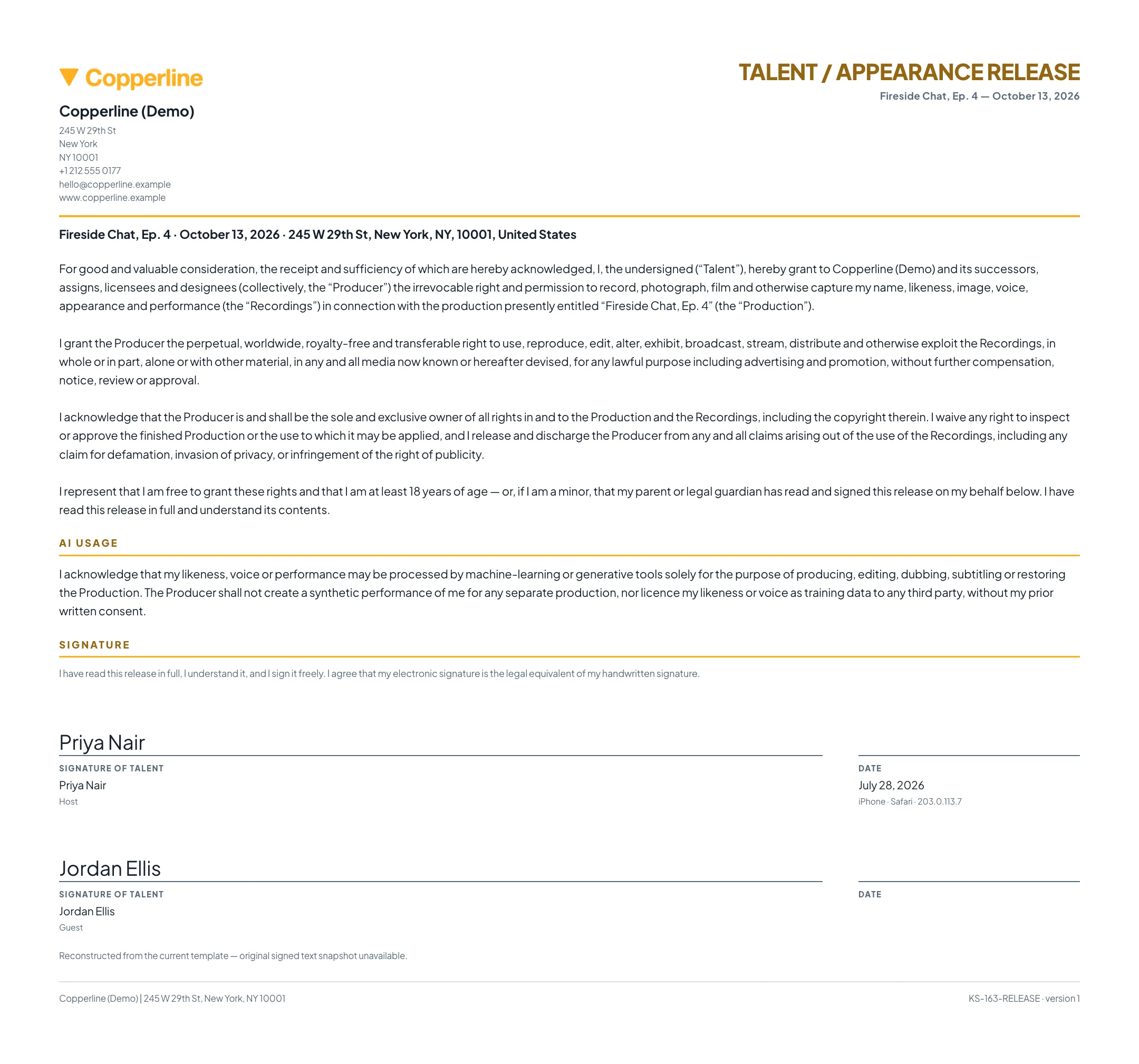
The signed release as a PDF, kept exactly as it was signed
The PDF you file: the text they saw, with their signature.
05 · THE INVOICE — what is due, by when, and where to pay

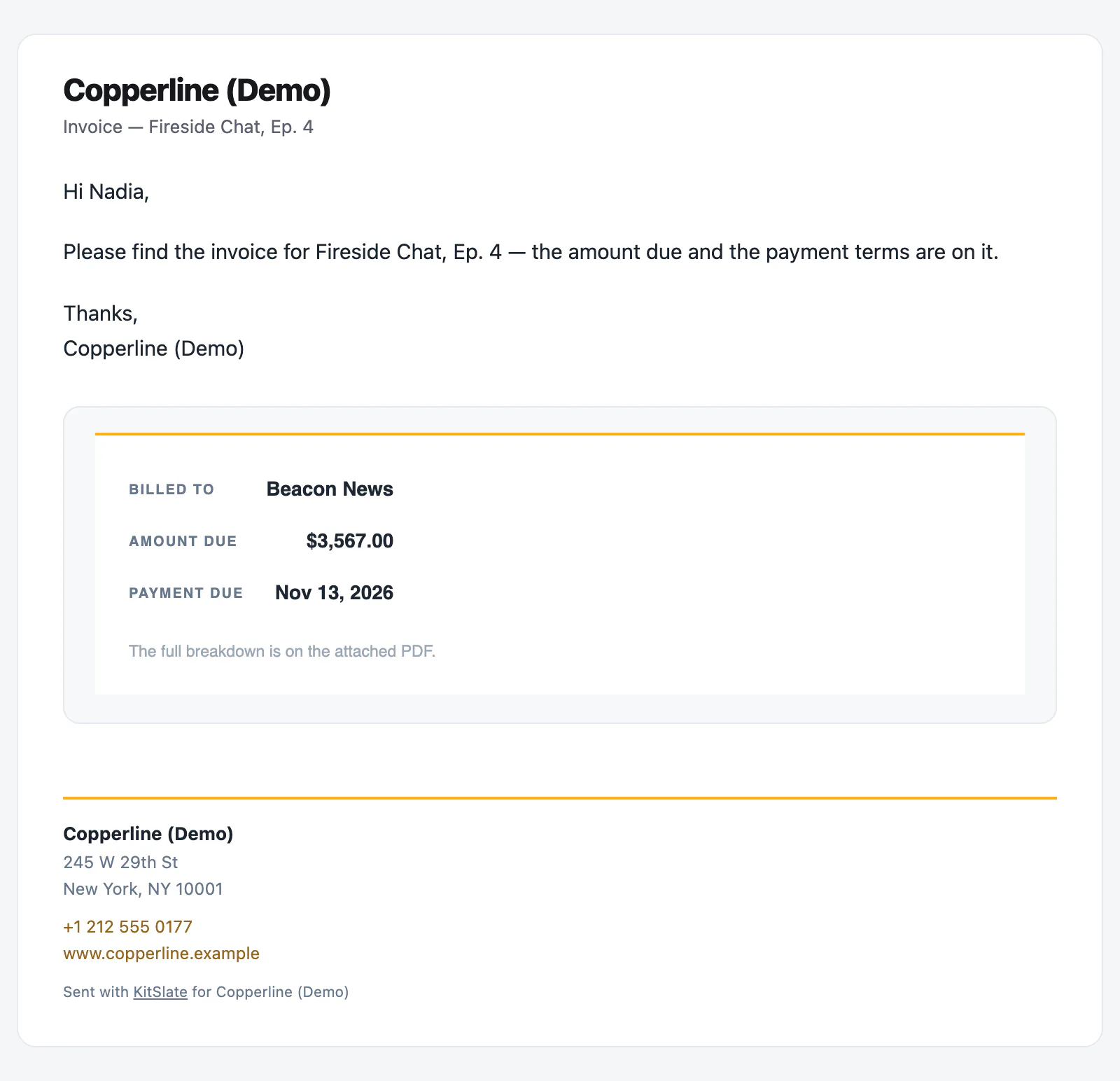
An invoice with a real Pay button.

Billed to, amount due and due date, with the PDF attached. The hosted invoice has a Pay button when Stripe is connected.
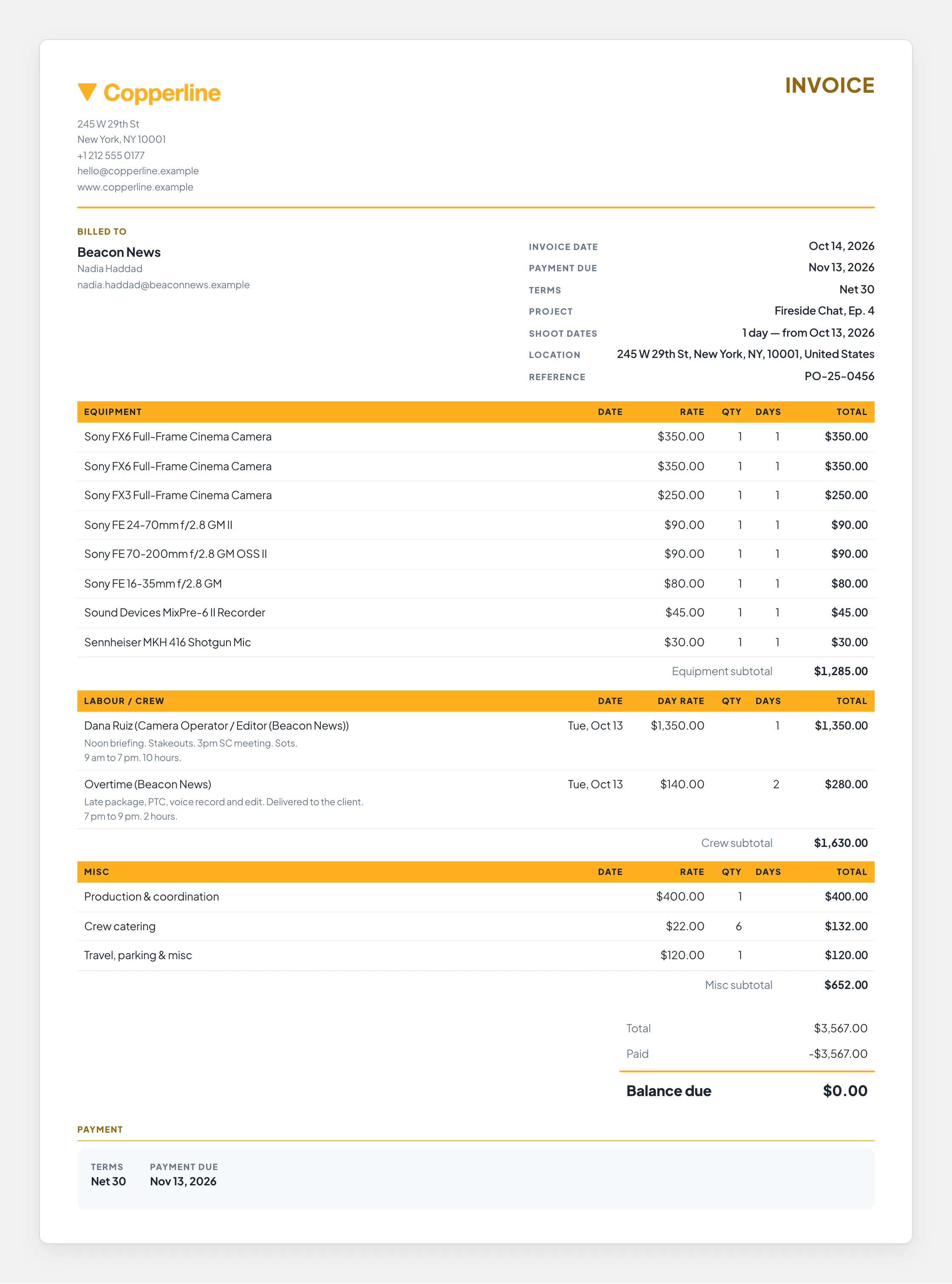
Paid comes backCard payments mark it paid by themselves. You record bank transfers.
Receipts ride alongReceipts for billed expenses go with it, numbered to match the lines.
Revisions keep their historyTheir link shows the new version. Earlier versions stay on file.
the client’s inbox · Invoice — Fireside Chat, Ep. 4
The invoice email: the company name and Invoice — Fireside Chat, Ep. 4, a greeting and the message, then a card with who it is billed to, the amount due and the payment due date, a note that the full breakdown is on the attached PDF, and the company's details in the footer
The invoice email. Billed to, amount due, payment due.
kitslate.app/invoice/… · the client pays here
The hosted invoice the client opens: a numbered, dated invoice carrying the same lines and the payment terms, with a Pay button
The hosted invoice: the same sections and totals, and the Pay button.
Invoice.pdf
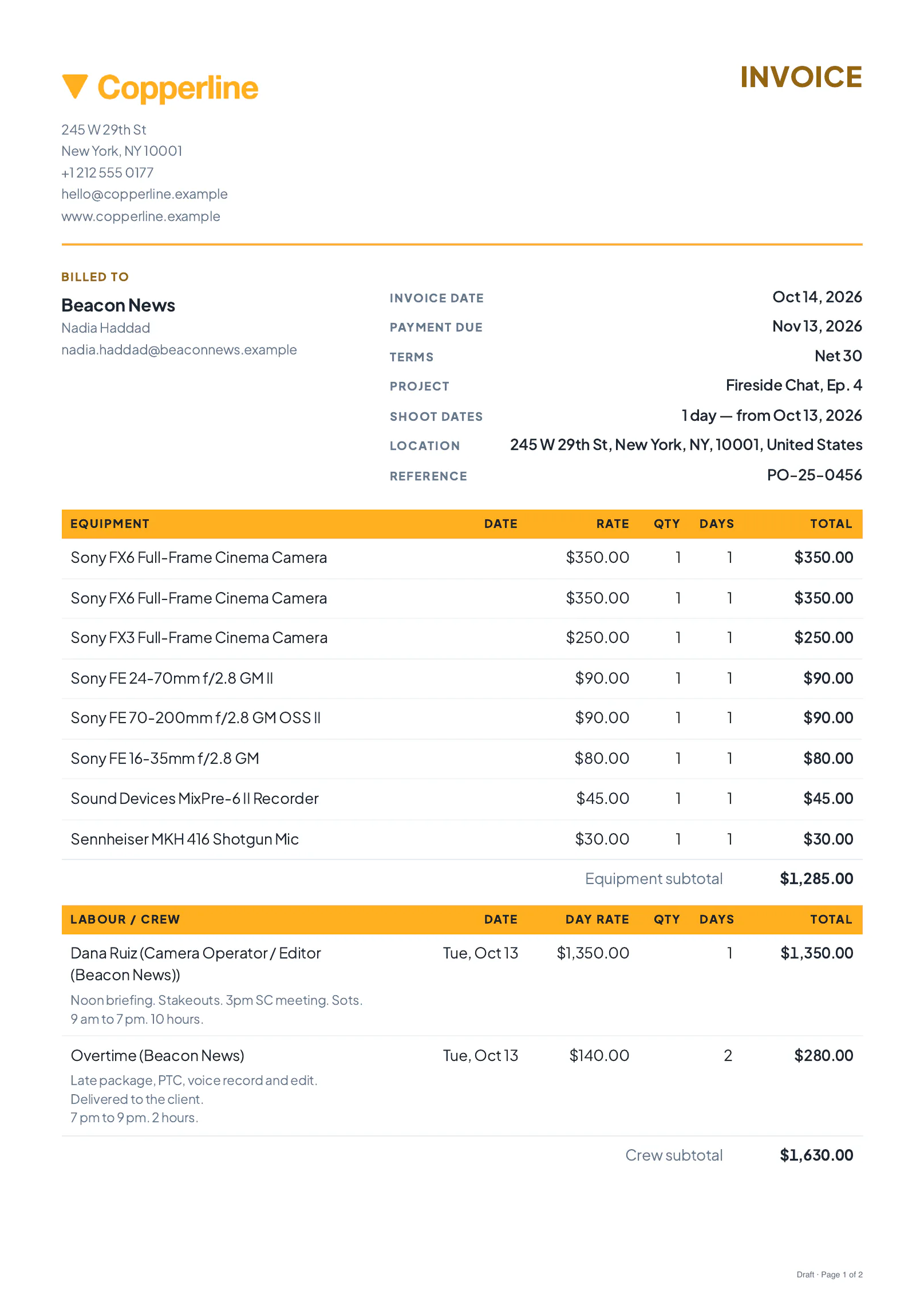
The invoice as a PDF: the same sections and the same totals
The PDF attached to the email.
06 · SEVERAL AT ONCE — one email, one page, every document

When you need more than one thing from someone.

A quote, a release and an invoice arrive as one email and one page, in order.
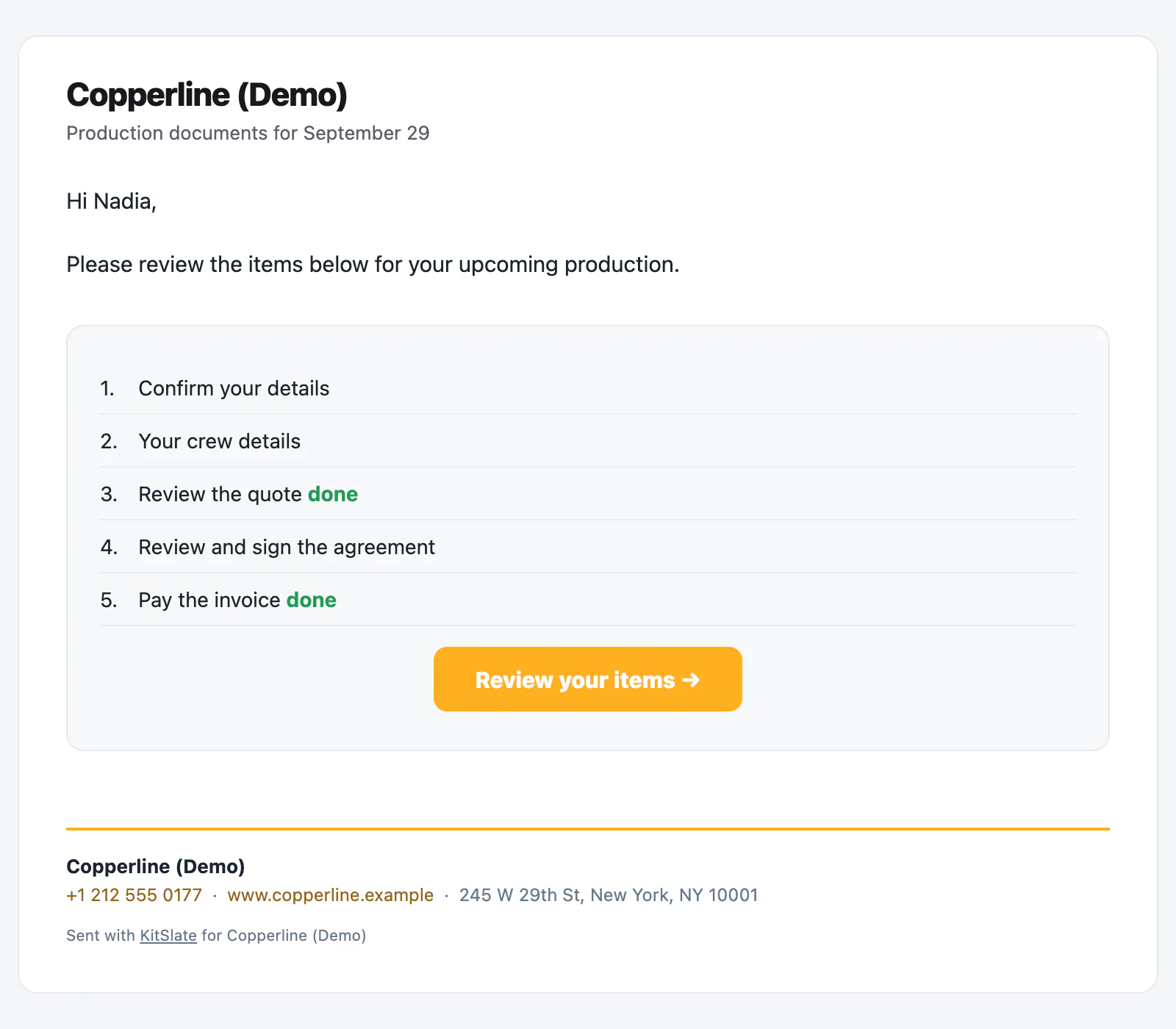
One link, not threeReview your items opens a page with a button for each: review, sign, pay.
Done stays doneAnything handled shows green, so a second send never asks twice.
Their details, firstAsking for their details? That comes first, and fills your records.
the client’s inbox · Production documents for August 25
The batch email: the company name and Production documents for August 25, a greeting, then a numbered list (Review the quote, marked done in green, and Pay the invoice) and a Review your items button, with the company's details in the footer
One email for everything outstanding. The quote is already done; the invoice is next.
kitslate.app/b/… · the client’s page
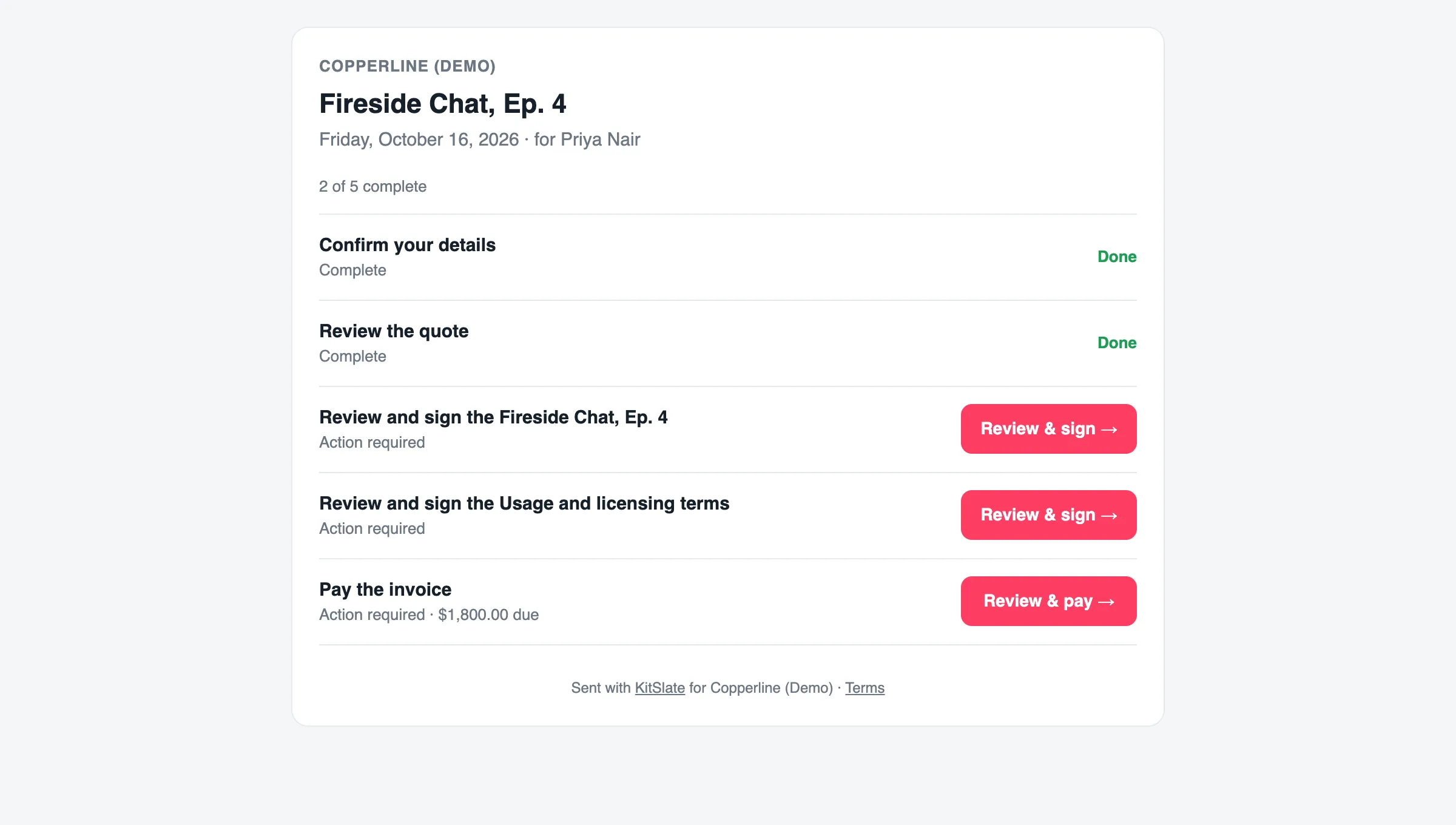
The recipient's page: the production and date, 2 of 5 complete, then five rows: confirm your details and review the quote marked Done, two agreements each with a Review & sign button, and pay the invoice
The page it opens: 2 of 5 complete, each item with its own button.
07 · ASKING FOR THINGS — their details, their receipts, their part of the work

When you need something from them.

Ask crew for their details, a client for billing details, or anyone for receipts. Or hand someone a document to fill in.
Nothing to sign up forEach opens a private form, and the answers fill your records.
Receipts by replyAn address to forward receipts to and a link to photograph them. Receipts from 500-plus till systems and apps arrive already read.
Hand over a documentA coordinator fills in the call sheet, and it arrives in your production.
the crew member’s inbox · Your details for our crew address book
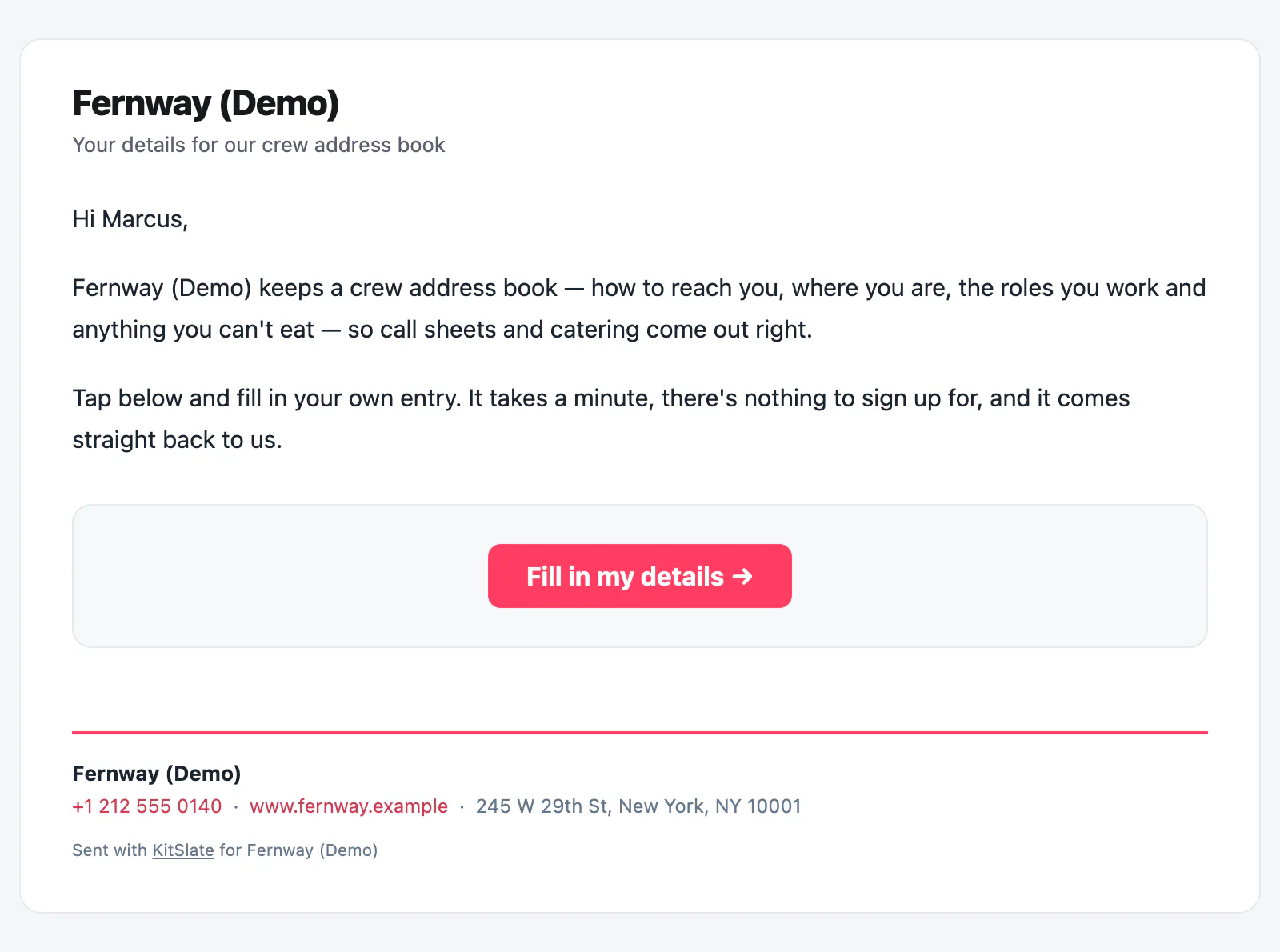
The crew request email: the company name and Your details for our crew address book, a greeting, two short paragraphs explaining why and that it takes a minute with nothing to sign up for, and a Fill in my details button
Asking a crew member for their own entry.
the client’s inbox · Your details for our records
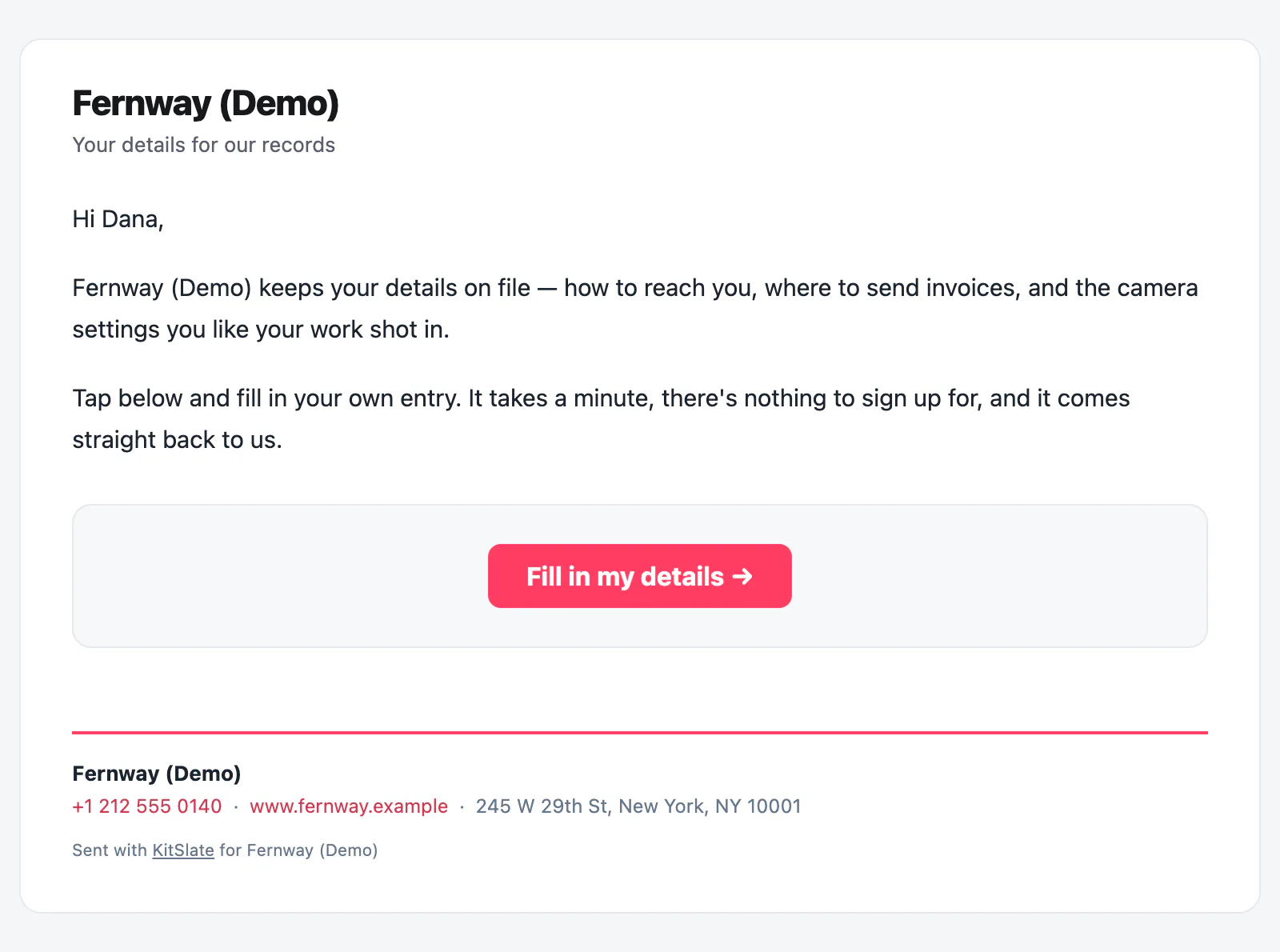
The client request email: the company name and Your details for our records, a greeting, a paragraph about how to reach them, where to send invoices and the camera settings they like, and a Fill in my details button
Asking a client for billing details and camera preferences.
the crew member’s inbox · Send your receipts and invoice
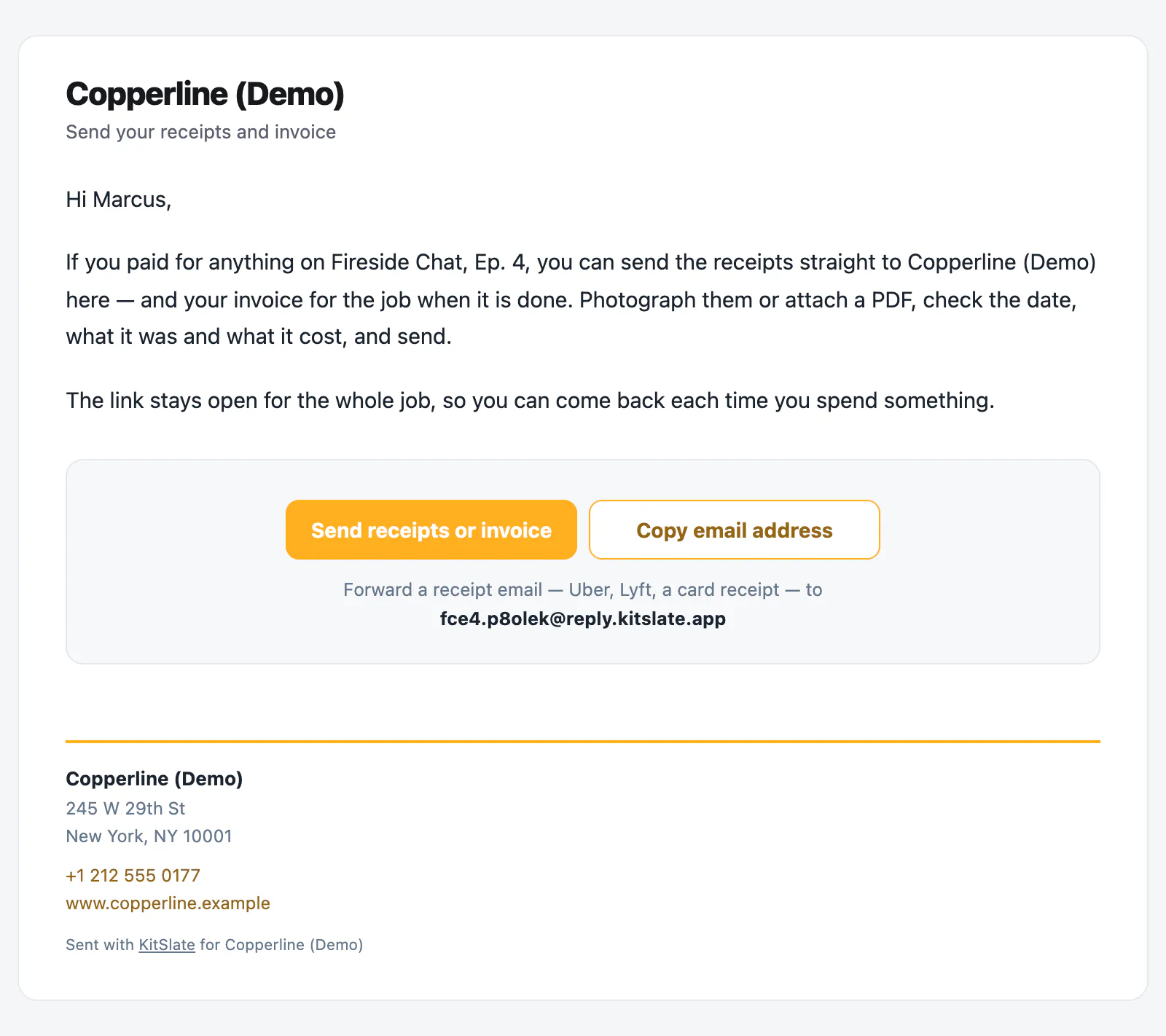
The receipts email: the company name and Send your receipts and invoice, a greeting, two paragraphs explaining that receipts for the job and the invoice can be sent here and the link stays open for the whole job, a Send receipts or invoice button, a Copy email address button and the reply address to forward receipts to
Asking for receipts: a button to photograph one, and an address to forward one to.
the coordinator’s inbox · Please fill the call sheet
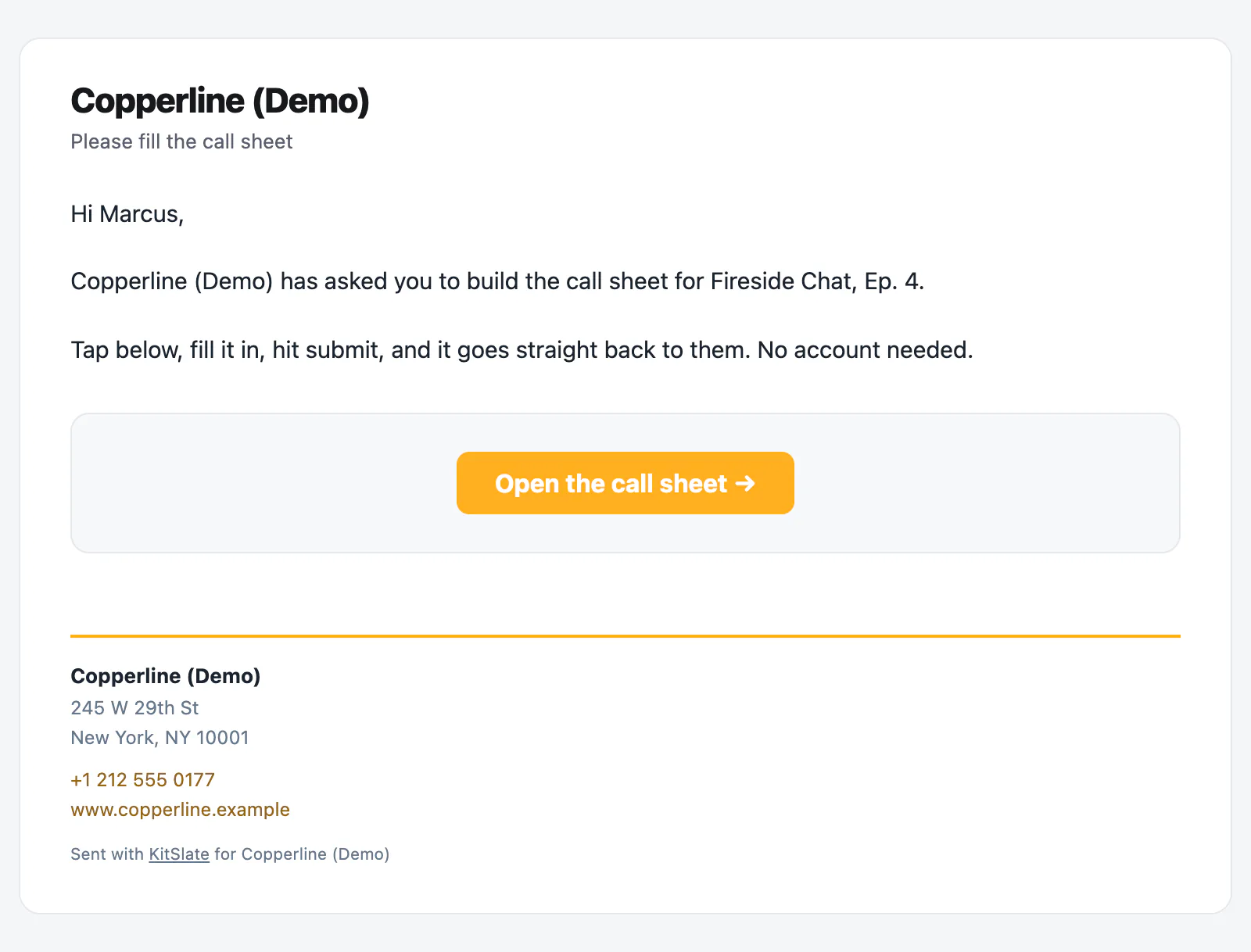
The hand-off email: the company name and Please fill the call sheet, a greeting, a line saying the company has asked them to build the call sheet for the job, a note that no account is needed, and an Open the call sheet button
Handing a document to someone to fill in. No account needed.
08 · THE MEDIA CENTER — rushes they watch, hear and answer at the frame

Rushes they can watch before they download.

One email from your company with your note and every file. The page plays them in the browser, MXF and ProRes included, and takes comments at the frame.
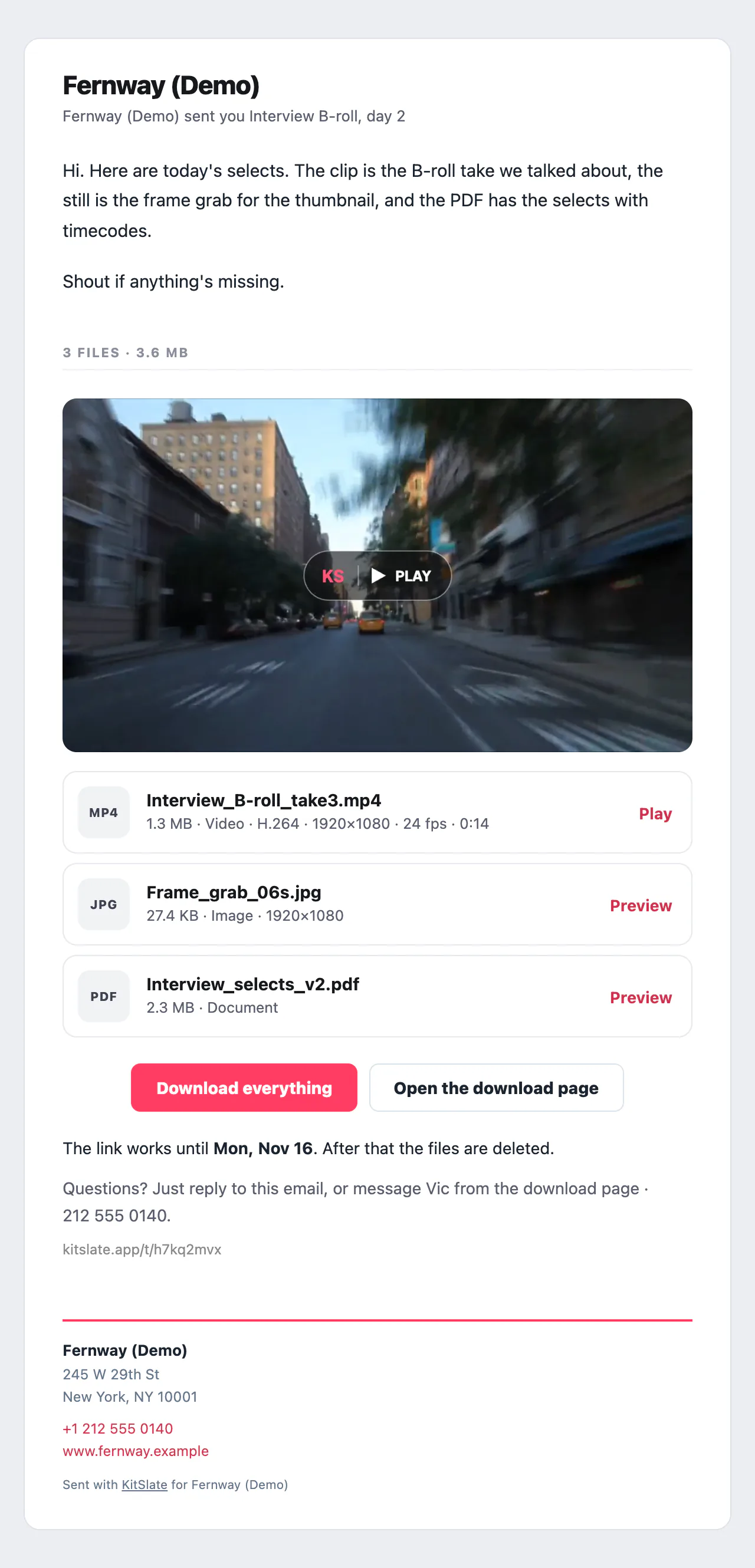
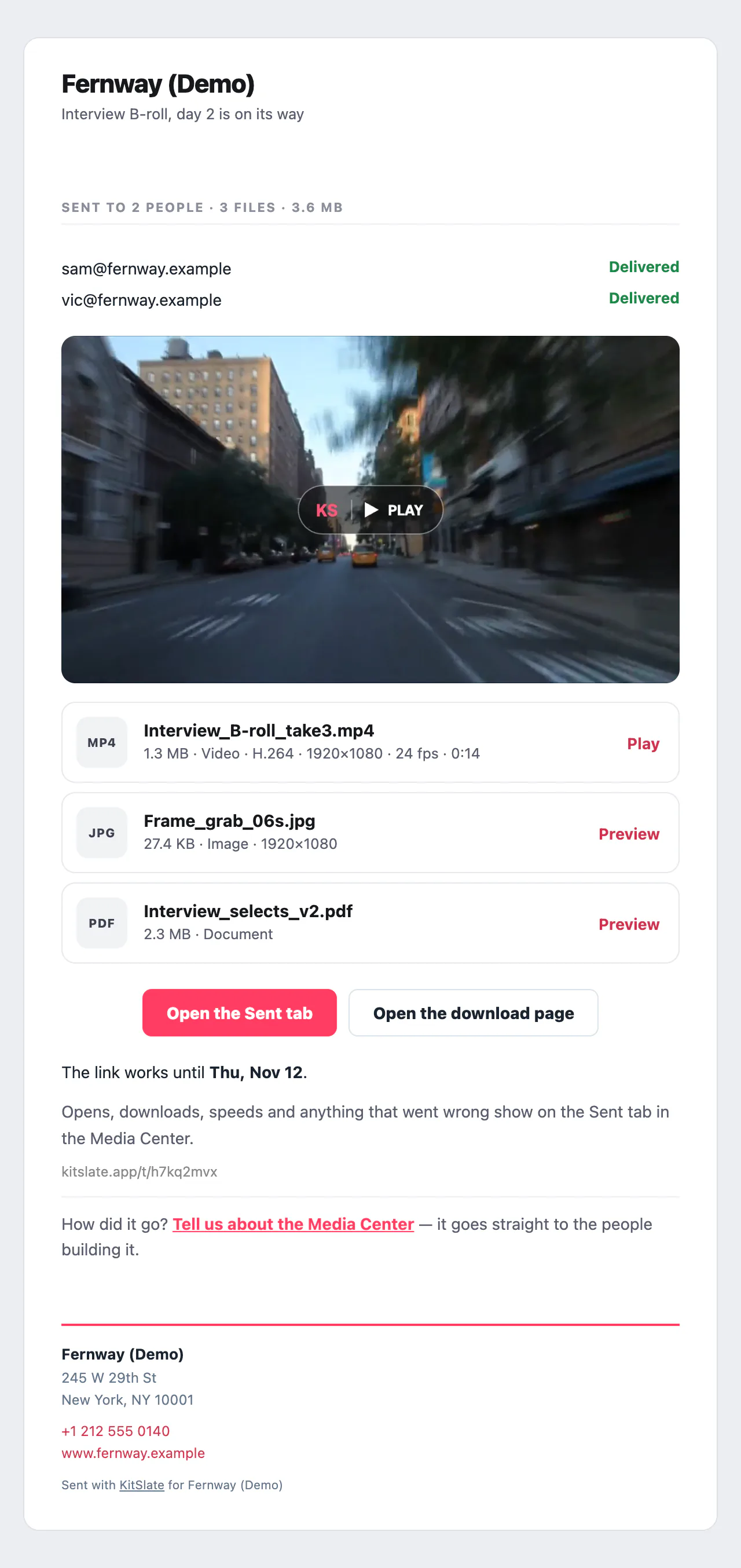
Your note, a picture, then the filesYour note, a still of the first clip, every file with its specs, and the end date.
Camera files playAn MXF with no proxy plays from a preview. The download is the master.
Every audio trackA lane and solo for every track, and Stereo or Mono.
A comment at a momentA comment opens the clip at the same frame for you.
Just the part they needSet an in and an out and download that part.
What was said, at the timecodeOn paid plans, a searchable transcript, every line at the clip’s timecode.
Download everythingOne button saves the lot into a folder they pick.
Your own copyYou get the same email, with who it went to and whether it was delivered.
Two notices before the link endsAnyone who hasn’t downloaded is reminded. You hear who has not, with Keep it 7 more days.
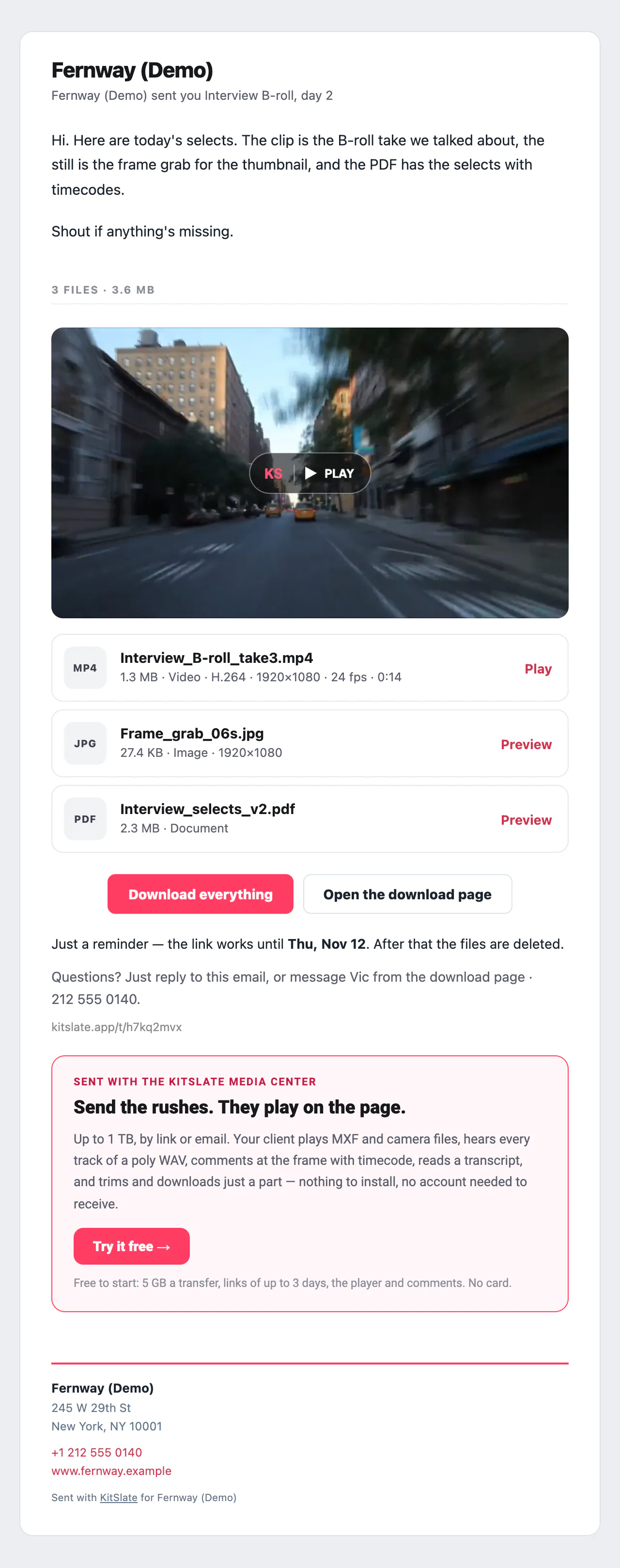
Fernway (Demo) sent you Interview B-roll, day 2
The file transfer email from Fernway (Demo): Fernway (Demo) sent you Interview B-roll, day 2, the sender's note, 3 files and 3.6 MB, a still of the first clip with a KS Play mark, then a row per file with a type badge, the name, size and specs and a Play or Preview link, a Download everything button and an Open the download page button, the date the link works until, the reply line and the short link
The email: your note, a picture of the first file, a row for each file, two buttons
Interview B-roll, day 2 is on its way
The sender's own copy: Interview B-roll, day 2 is on its way, Sent to 2 people · 3 files · 3.6 MB, each address with Delivered beside it, the same still and file rows, Open the Sent tab and Open the download page buttons, the day the link works until, and a line that opens, downloads and speeds show on the Sent tab
Your copy, sent to you at the same time: who it went to, whether it was delivered, and when the link ends
Interview B-roll, day 2 ends in 2 days — vic@fernway.example hasn't downloaded it
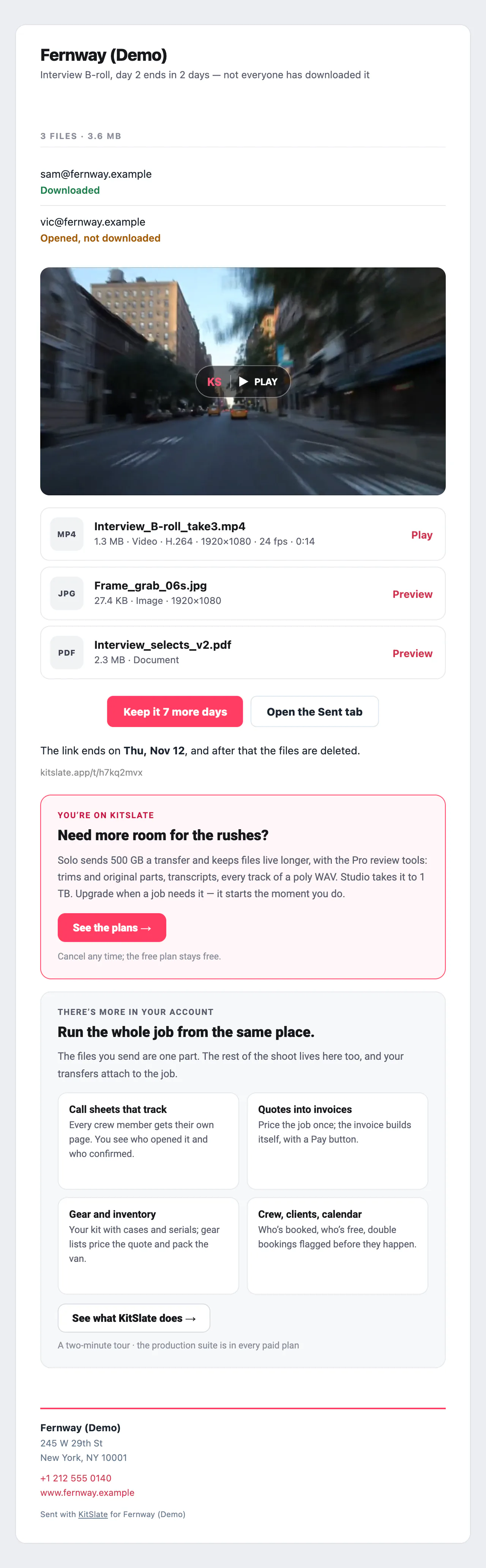
The sender's ending notice: Interview B-roll, day 2 ends in 2 days — not everyone has downloaded it, each recipient with Downloaded or Opened, not downloaded under their address, the still and file rows, Keep it 7 more days and Open the Sent tab buttons, the date the link ends, then the Need more room for the rushes card and the There's more in your account tiles
Two days out, you are told who has not downloaded, with one button to keep the link a week longer
You haven't downloaded Interview B-roll, day 2 yet — the link ends in 2 days
The recipient's reminder: the sender's company, Fernway (Demo) sent you Interview B-roll, day 2, the original note, the still and file rows, Download everything and Open the download page, Just a reminder — the link works until Tue, Oct 20, the contact line, and the Send the rushes card inviting them to try the Media Center
The reminder a recipient gets, with their own link, in days and then in hours before the end
kitslate.app/t/8zmuaefg
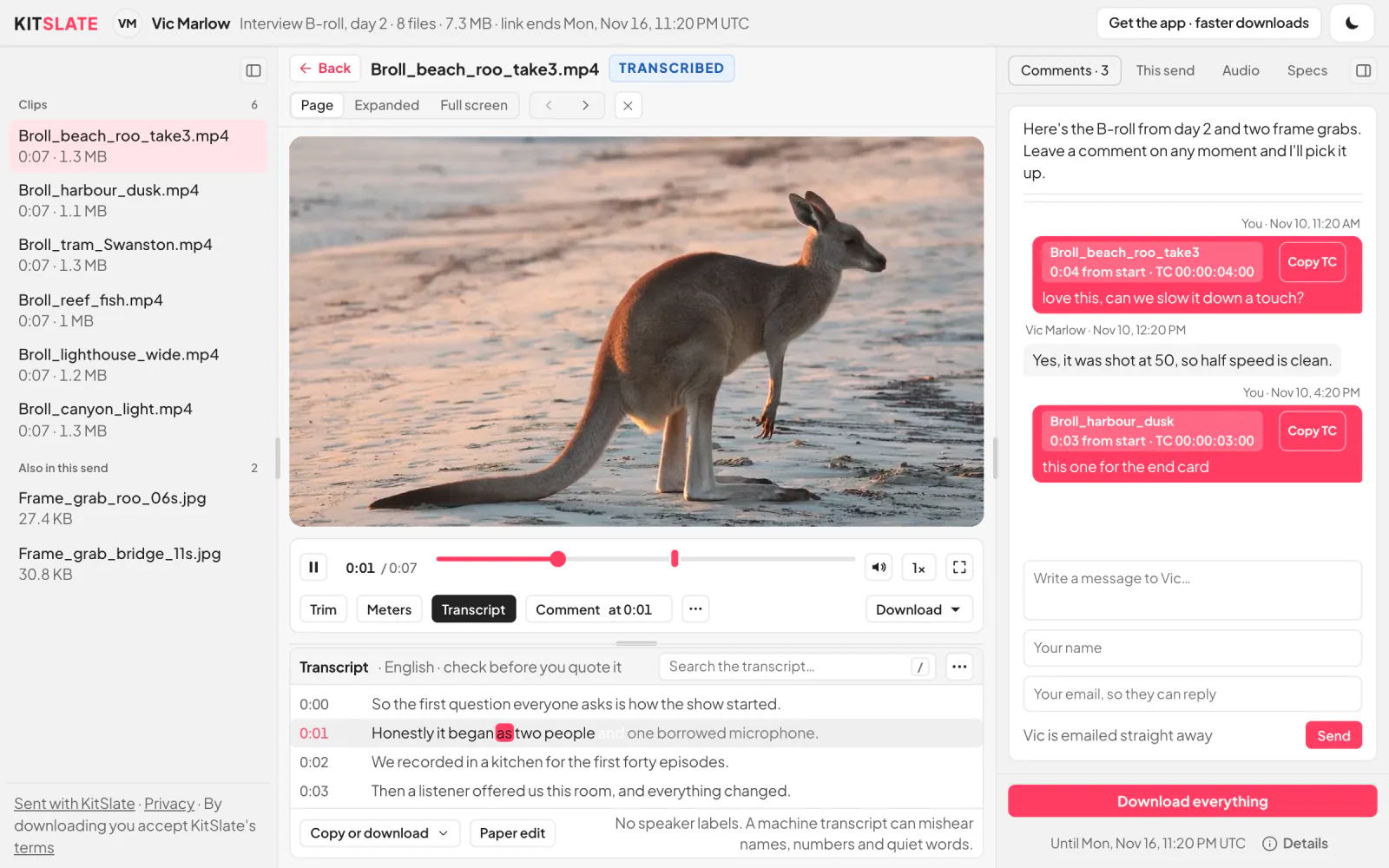
The download page for six clips and two frame grabs: the files on the left, the first clip playing in the middle with its bar and its transcript under it, the line being heard lit, and on the right the sender's note, the comments back and forth, a message box and Download everything
The page the link opens: the note, the files and a way to write back
kitslate.app/t/8zmuaefg · playing
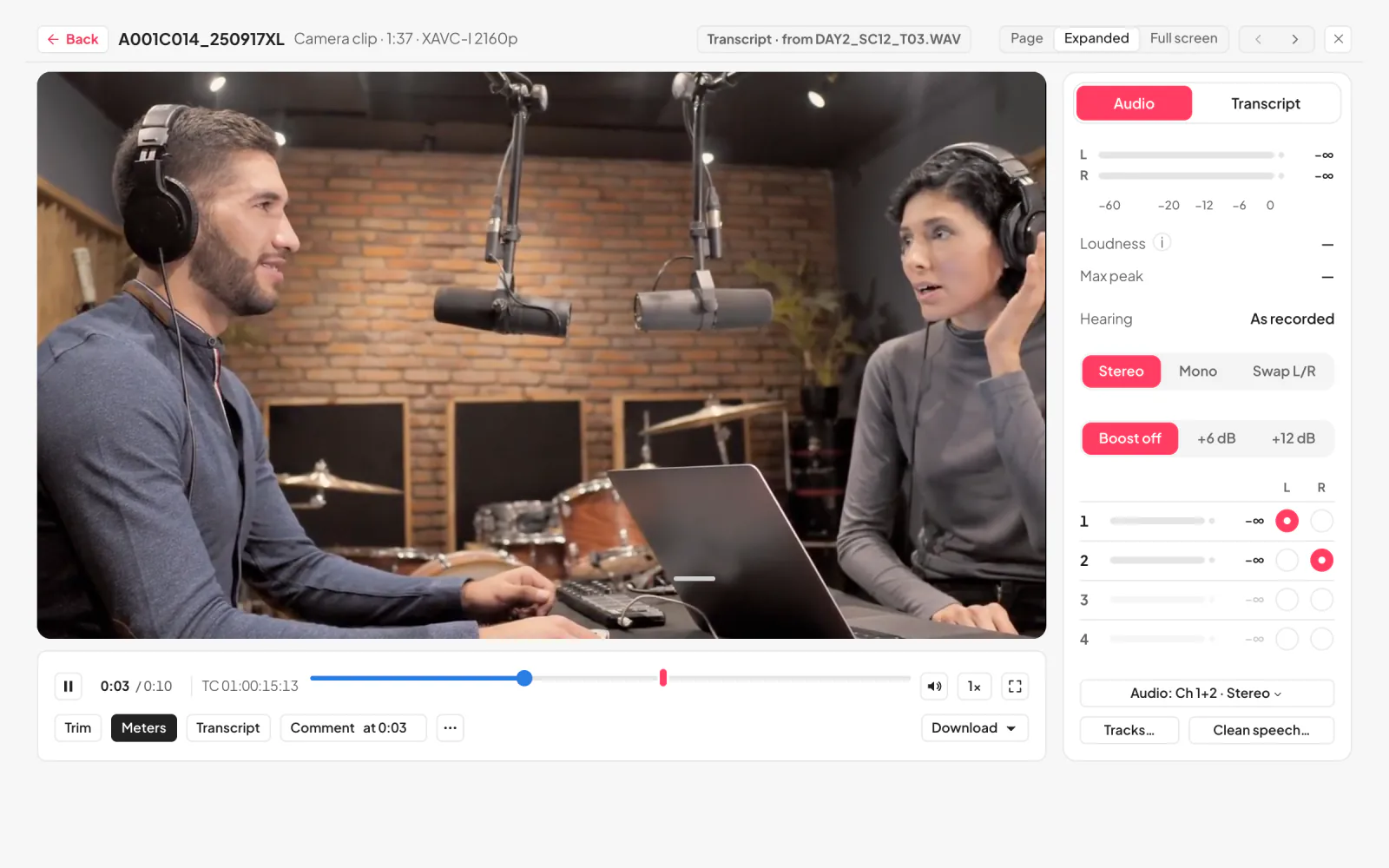
The player expanded: the picture filling the window, the bar with Trim, Meters, Transcript and Comment under it, and the Audio panel beside it with the level meters, Stereo, Mono or Swap and each track
Play it on the page, then comment at the moment
09 · WHAT COMES BACK TO YOU — the status cards, and the emails you receive

A receipt for them, a status for you.

Sent, opened, confirmed, signed and paid come back with a name and a time. Enquiries and market messages reach you by email.
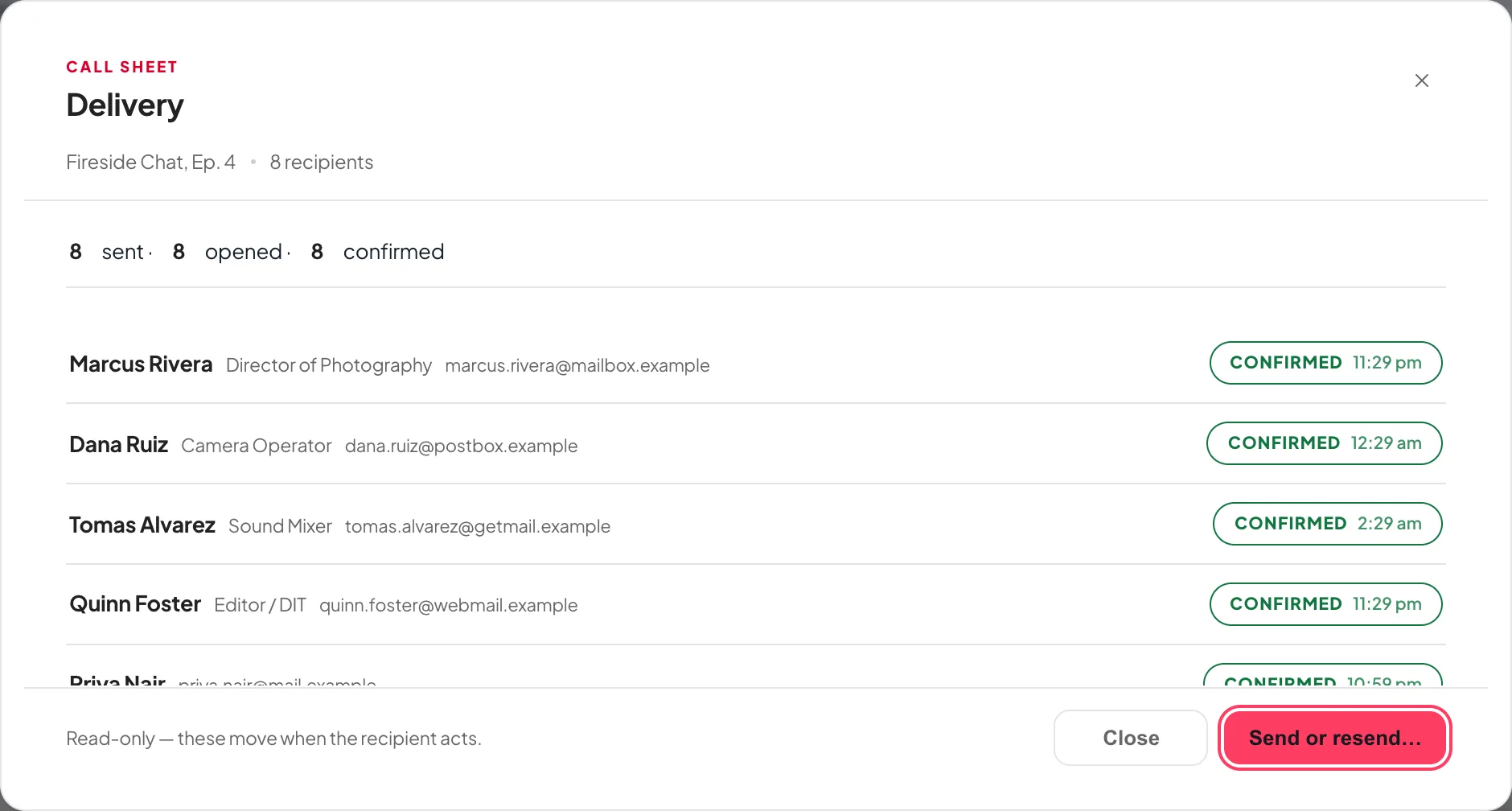
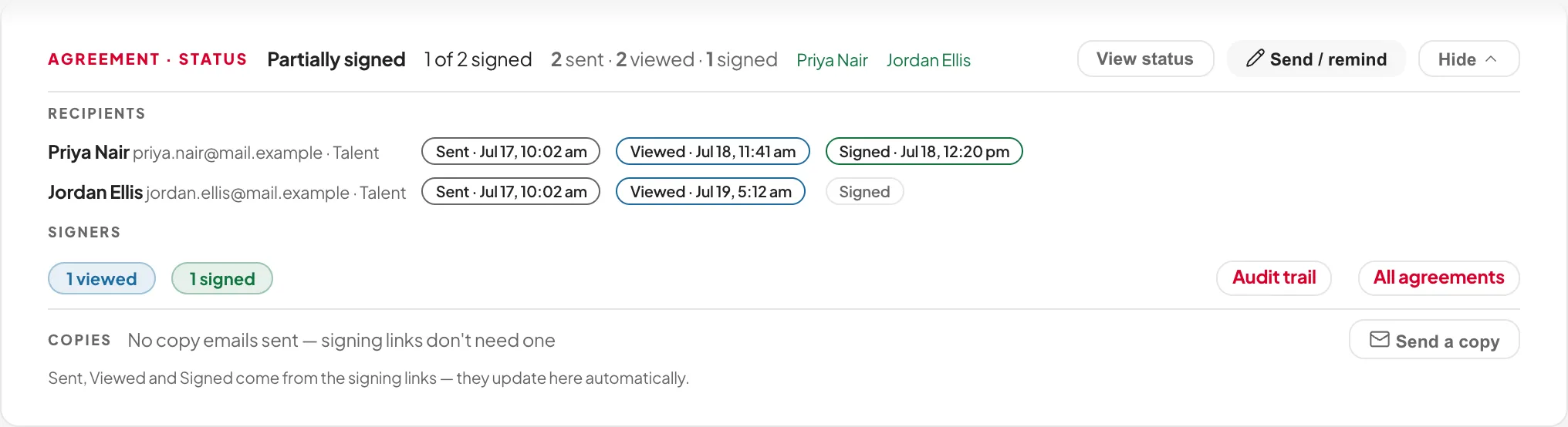
Per person, with timesCall sheets: Sent, Opened, Confirmed. Agreements: Sent, Viewed, Signed.
Nothing needs an accountA private link is the whole login.
A cancelled link says soAn old link shows who sent it, never a dead page.
kitslate.app/app · call sheet · status
The call sheet status card open: each crew member's row showing sent, opened and confirmed with times
The call sheet's status card: who has confirmed, with times.
kitslate.app/app · agreements · status
The agreements tab: who has signed, name by name, and who is still to sign
The agreement's status card: sent, viewed, signed, name by name.
QUESTIONS — the ones people ask first

Before you try it.

Do my crew or clients need a KitSlate account?

No. Everything works from a private link in the email.

Who does the email come from?

Your company, with replies to you. KitSlate is one small line at the foot.

Can I see it before I send?

Yes. Every sending box has a Preview of the exact email per person.

Are these real captures?

Yes, from the sandbox, made by the code that sends real email.

Send one and see for yourself.

The sandbox has every document ready. Press Send and read what arrives.

PREVIEW — NOT THE LIVE SITE · 5278 · 17 Nov 2026 · 28118909