Features · Expenses & receipts

Every receipt read, kept, and billed.

Drop receipts, or send the crew a link to photograph theirs. Each one is read, checked by you, and billed to the client with one switch.
kitslate.app/app · job · expenses
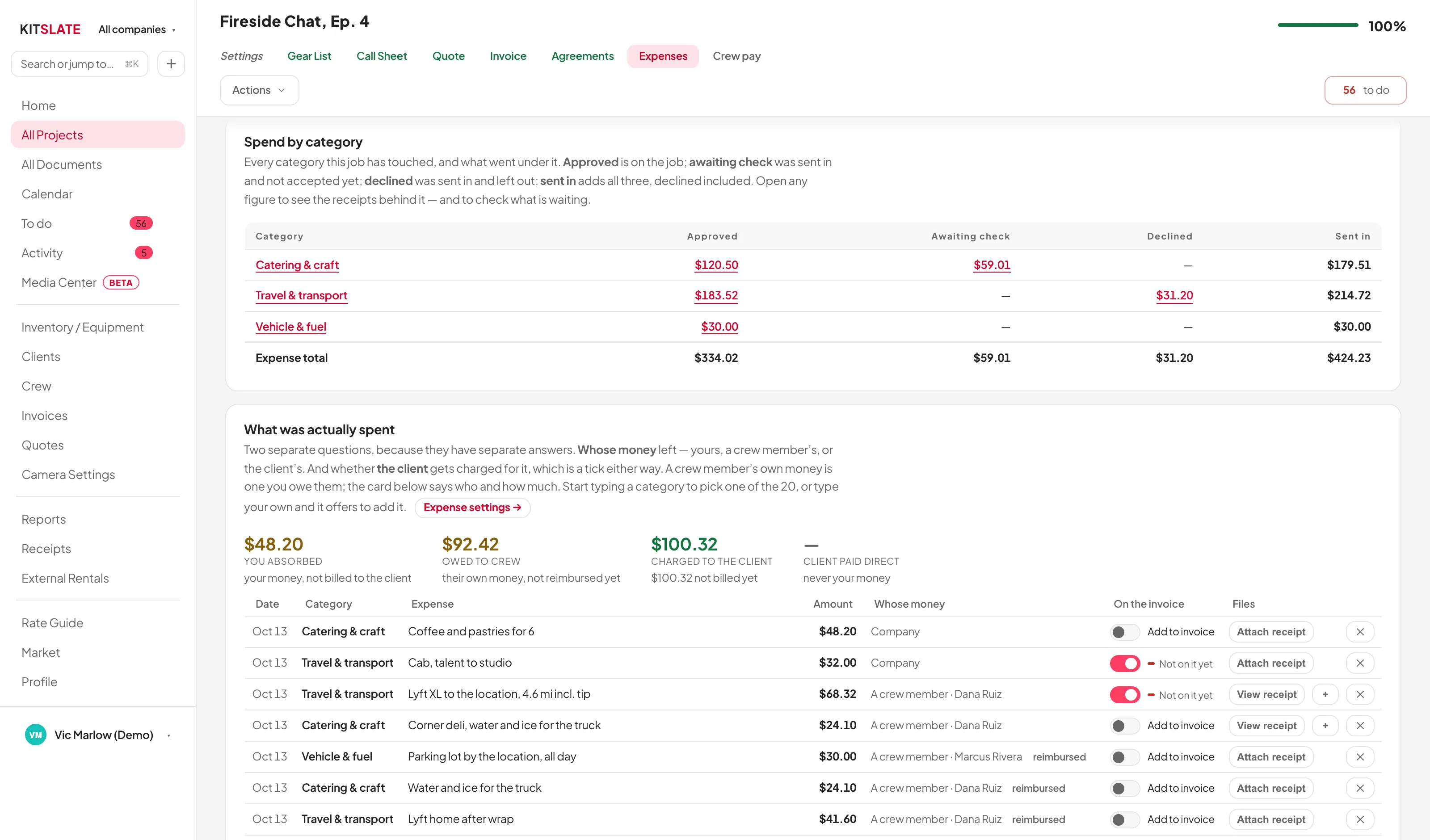
A job's Expenses tab: Spend by category with approved, awaiting check, declined and total columns, then the itemised expenses with who paid and the Add to invoice switch
Spend by category over the itemised list; every row says whose money and whether the client is charged.
01 · RECEIPTS IN — your desk, or their phone

Drop the stack, or send a link.

Import receipts takes PDFs and photos together. Or give the crew a link that opens on a phone.
Take a photo, choose a file, sendThree buttons and a progress bar. No sign-in, no app.
Or forward the emailEach link has an email address for the job. Forward an Uber, Lyft or Square receipt and it arrives to check.
Straight from the tillGive the job’s address at the till. Receipts from more than 500 till systems and apps arrive by themselves.
A file is not a receiptA scanned stack is split into receipts, and pages of one receipt are joined.
Whose money, on the way inCompany card or their own money, so you know who is owed.
What they sent stays on their pageThey see what they sent, by day, and what they are owed.
The same categories you keepThe link shows your categories. Add one and sent links pick it up.
kitslate.app/app · job · expenses · give someone access
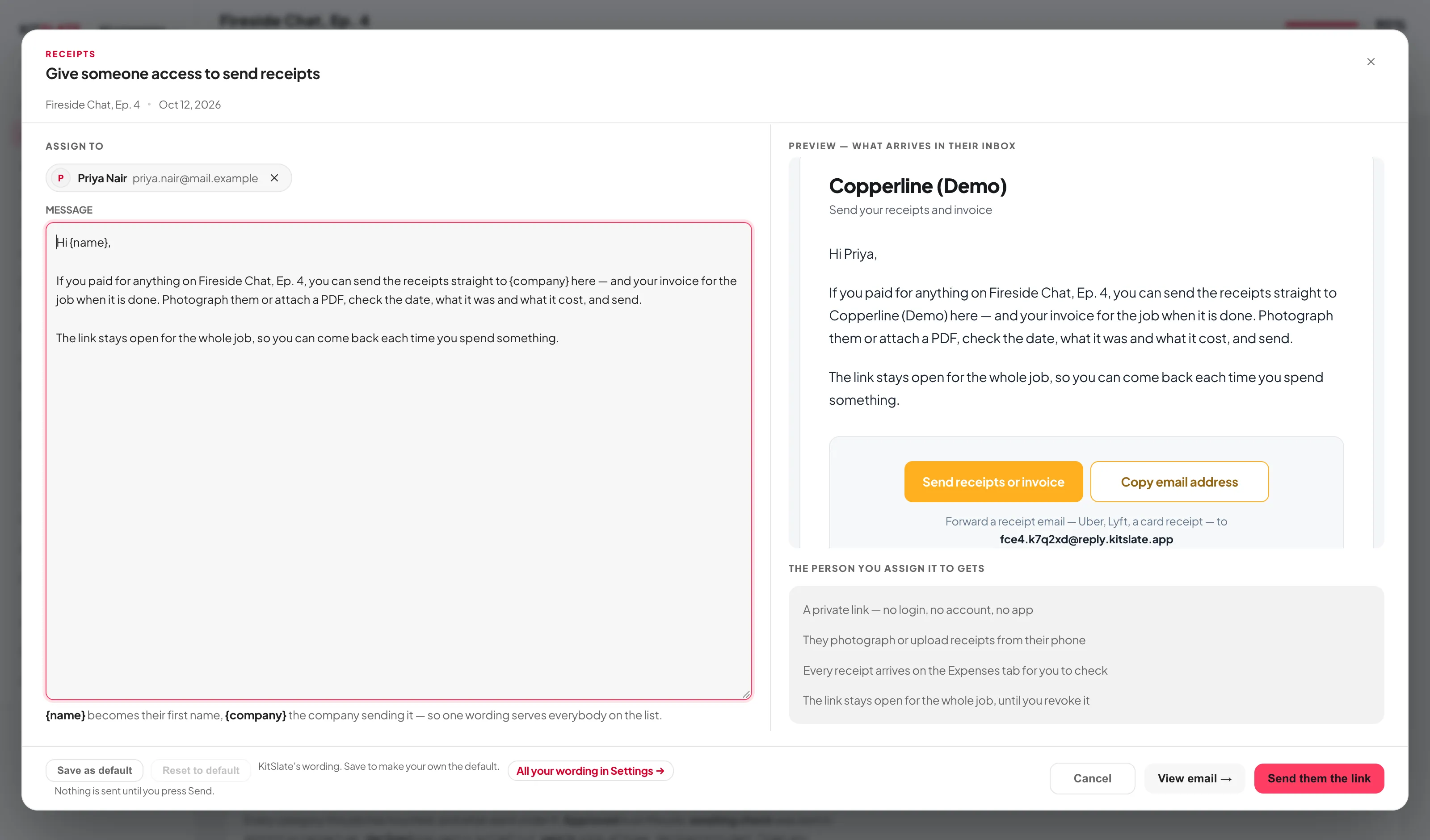
Give someone access to send receipts: a crew member picked, the message with {name} and {company} in it, and on the right the email exactly as it will arrive in their inbox, with its Send a receipt and Copy email address buttons and the job's receipts address printed under them, above what the person gets: a private link, no login, receipts from their phone or a forwarded email, open for the whole job
The email as it will arrive. Nothing goes until you press Send them the link.
02 · HAND IT OFF — the email, then where each person stands

One email each. A line that says where they are.

Give someone access sends each person their own link, so you know who spent what. The Receipt upload card shows where each one stands.
The email is from youIt comes from your company, and replies come to you. No account, nothing to install.
Your wording, once{name} and {company} fill in for each person. Save as default keeps it.
Or send it with the call sheetAlso let them send receipts puts the link in each call sheet email.
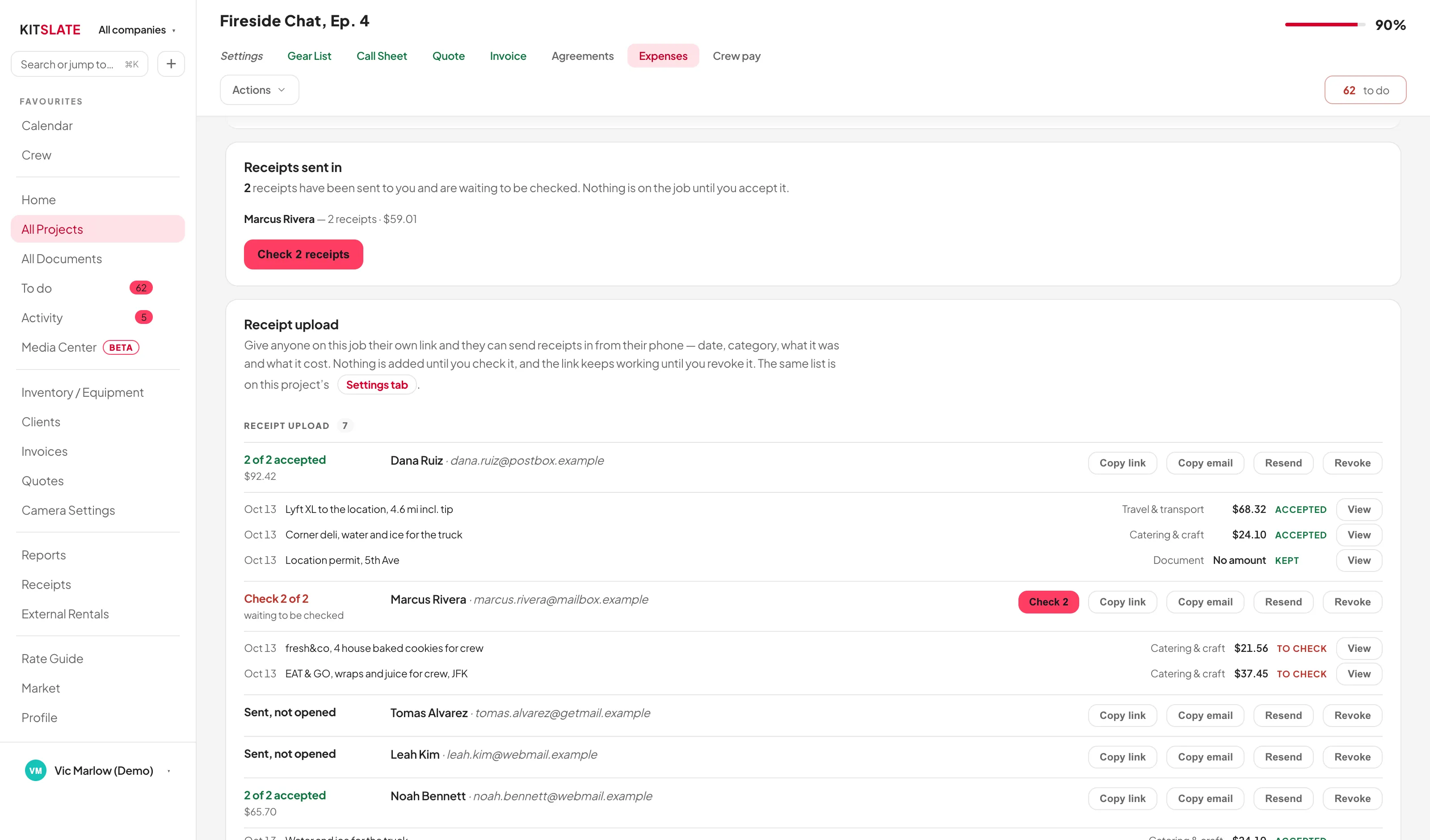
Where each person standsSent, not opened, Opened, nothing sent, Check 2 of 2 in red, or 2 of 2 accepted in green.
Copy link, Copy email, Resend, RevokeEach person’s row has all four. Revoke stops the link and keeps what was sent.
Who owes who, underneathWhat you owe each person, with Mark reimbursed, and what the client will owe you.
kitslate.app/app · job · expenses
The Expenses tab's status cards: Receipts sent in with Check 2 receipts, the Receipt upload list with a green line for two of two accepted and a red line for two waiting to be checked, each person's receipts under their name with Copy link, Resend and Revoke, and Who owes who beneath
Red is waiting on you, green is done; every receipt under the name of whoever sent it.
03 · FIX IT — before you check it

A wrong price fixed, not sent twice.

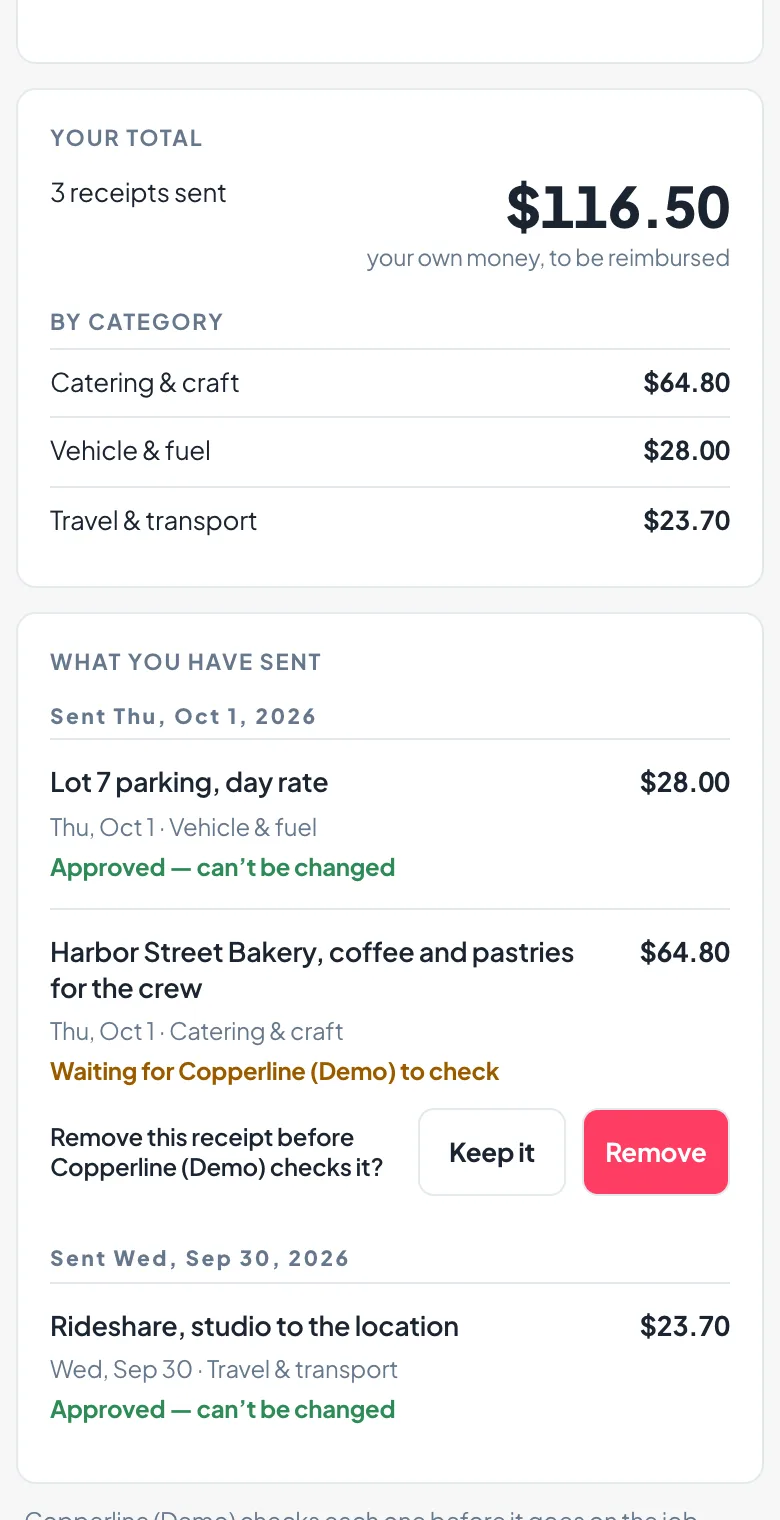
Under What you have sent, the crew can edit or remove any receipt you haven’t checked yet. Once you approve it, it locks.
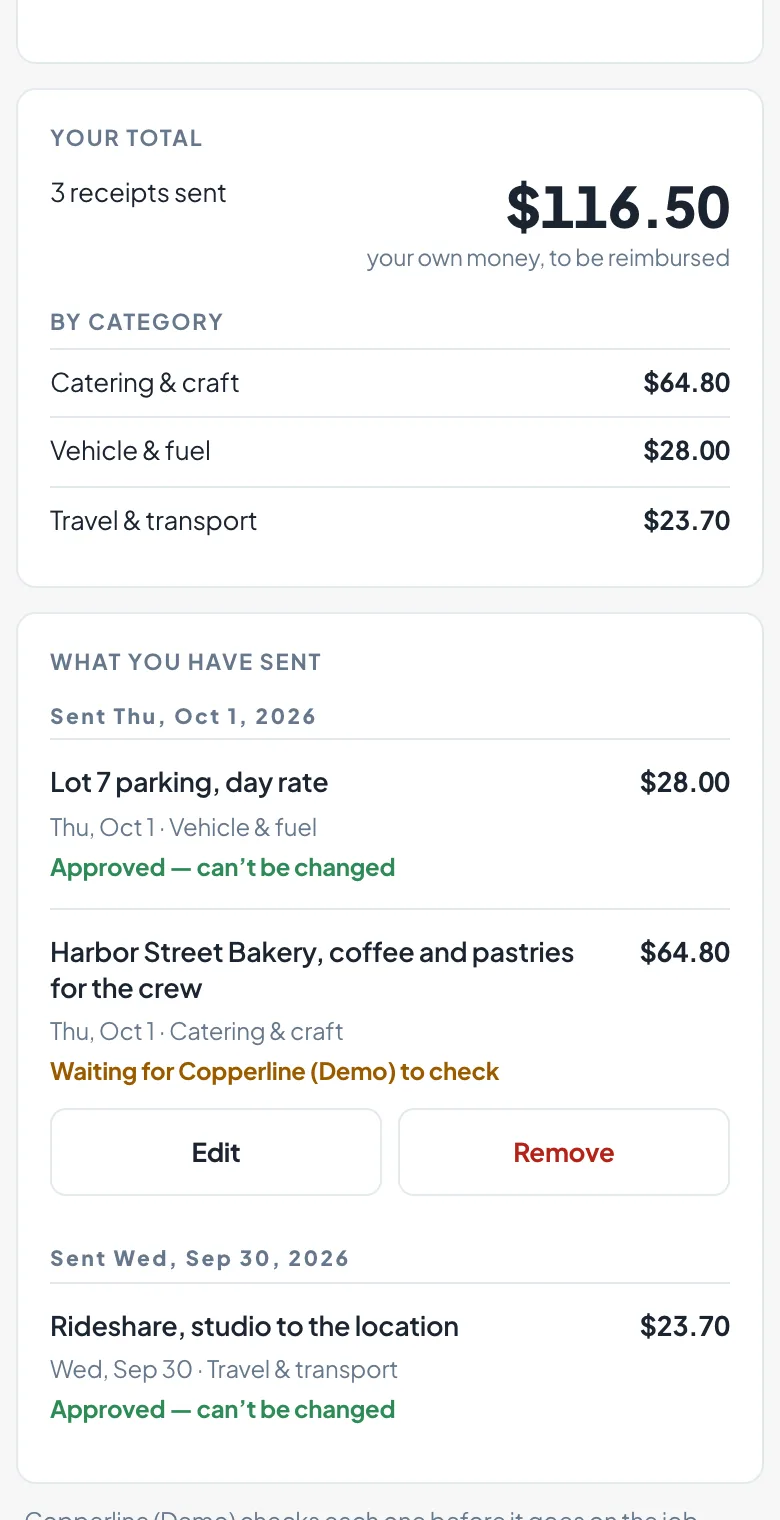
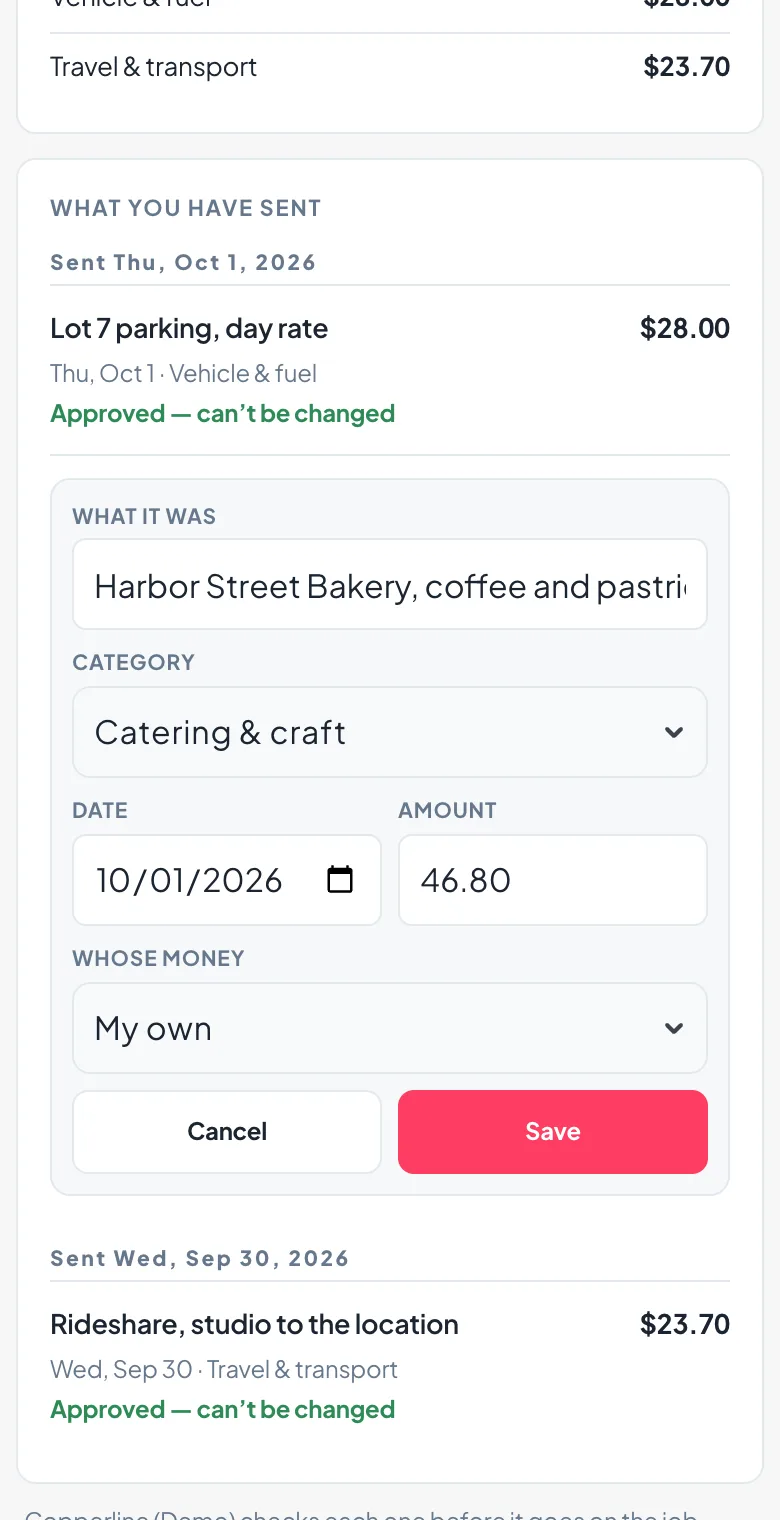
Edit what it says, not the photoThey can fix the details. The photo stays as sent.
You see what changedYour check reads Edited by them — was $64.80 beside the new figure.
Remove asks firstRemove this receipt? asks first, with Keep it beside Remove.
Approved can’t be amendedIt reads Approved — can’t be changed, and the server refuses edits.
Built for a phoneFull-width buttons on a phone, at the row’s end on a laptop.
kitslate.app/receipts · on their phone
The crew member's receipts page on a phone: What you have sent, two receipts reading Approved — can't be changed and one waiting receipt with Edit and Remove buttons; then that receipt open for editing with what it was, category, date, amount and whose money, and Cancel and Save; then Remove this receipt? with Keep it and Remove — screen 1 of 3
Edit
The crew member's receipts page on a phone: What you have sent, two receipts reading Approved — can't be changed and one waiting receipt with Edit and Remove buttons; then that receipt open for editing with what it was, category, date, amount and whose money, and Cancel and Save; then Remove this receipt? with Keep it and Remove — screen 2 of 3
Remove
The crew member's receipts page on a phone: What you have sent, two receipts reading Approved — can't be changed and one waiting receipt with Edit and Remove buttons; then that receipt open for editing with what it was, category, date, amount and whose money, and Cancel and Save; then Remove this receipt? with Keep it and Remove — screen 3 of 3
Waiting receipts keep Edit and Remove; approved ones are locked. Remove asks before it does anything.
04 · CHECK — the receipt beside the row

Read on arrival, checked by you.

Each receipt is read from its picture and its text, so a handwritten tip is caught. Nothing counts until you check it beside the receipt.
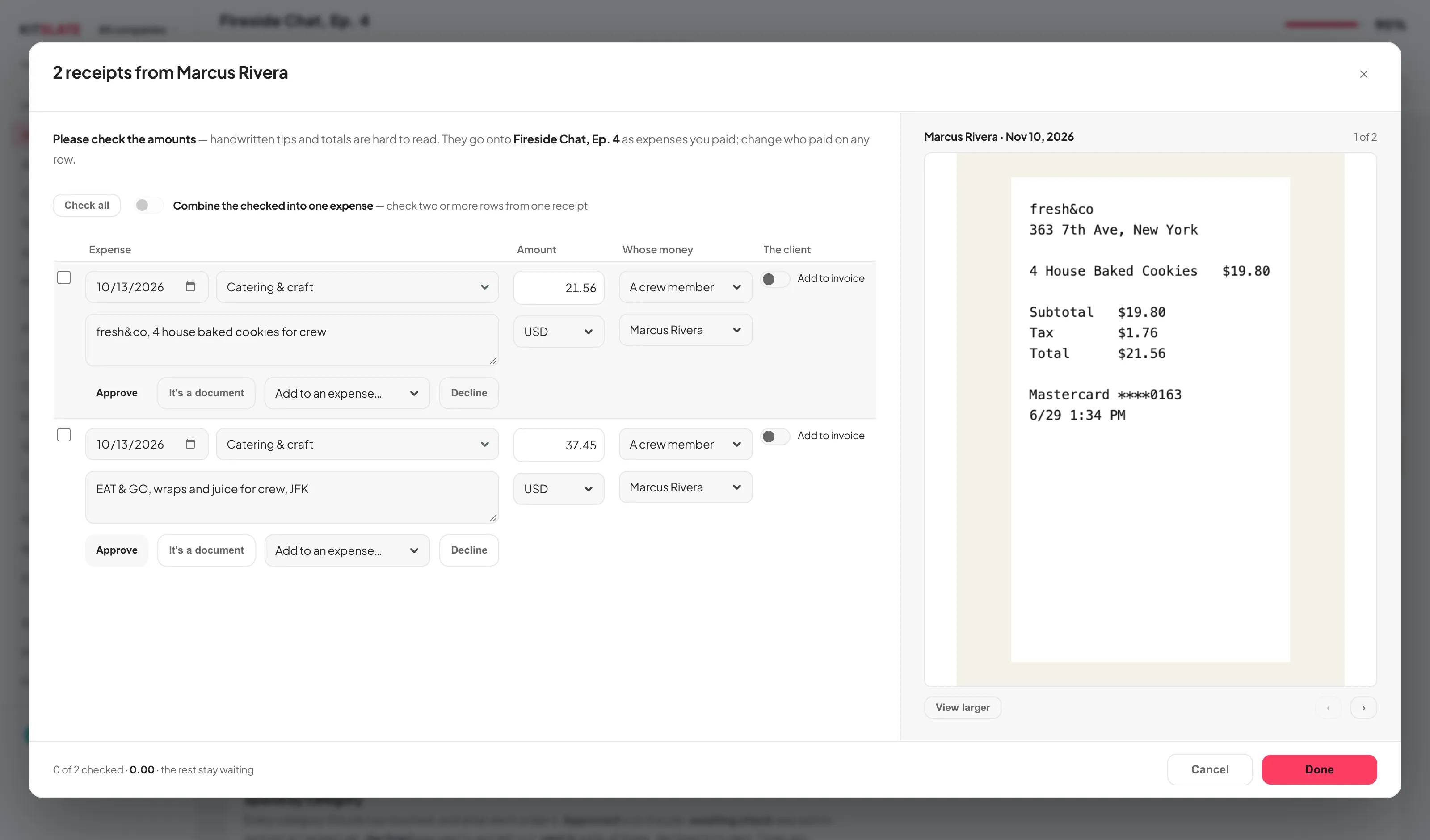
Whose receipts, in the title2 receipts from Marcus Rivera, laid out as they are on the tab.
Fit whole, click to zoomClick to zoom where you clicked. View larger opens it in the window.
Untick what does not countOnly what you accept counts. The rest is kept as declined.
Read into the right categoryDate, supplier, amount and one of nineteen categories, plus your own.
The words on the paper are searchableSearch finds an expense by any word on its receipt.
kitslate.app/app · job · expenses · check
The receipt check: two receipts from a crew member, the expense rows on the left and the selected receipt on the right
Whose receipts in the title; the receipt for the row you are on beside the rows.
05 · THE LEDGER — every category, three ways

Spend by category, and the receipts behind it.

Every category in four columns: approved, awaiting check, declined and total. Every figure opens what it counts.

Approved opens the receiptsEach expense beside its receipt, to check against the paper.
Awaiting check opens the checkThe check for that category, with the rest of each batch.
Declined says what was left outWho sent it, when, and for how much.
06 · STORED — small enough to keep, once

Shrunk on the way in. Stored once.

A receipt photo is shrunk on the phone that took it, before it uses the location’s signal. At 1800 pixels it is still easy to read.

1800 pixels, about 700 KBPhotos are saved as JPEGs of about 700 KB. Small pictures are left as they are.
A text PDF stays textA real PDF is kept as the searchable original.
One file, however many receiptsAn eleven-receipt PDF is stored once. The same file imported twice keeps one copy.
Download all, or mergeDownload all gives a zip. Merge and download gives one PDF for the accountant.
07 · ESTIMATE, THEN ACTUAL — quoted first, spent after

The quote prices the expenses. The tab reports them.

The client agrees an estimate line on the quote. What was actually spent is shown beside it on the Expenses tab.

Estimated against actual, at the top of the tabEstimate, actual and the difference, in the job’s currency.
Editable where you are lookingEdit the estimate on the Expenses tab or the quote.
Never charged twiceWhen actual expenses go on the invoice, the estimate comes off. Never both.
08 · ON THE INVOICE — one switch per expense

Billed as a section, with the receipts.

Each expense records whose money it was. The Add to invoice switch decides whether the client pays.

The switch is the actionOn puts it on the quote or the invoice straight away. Off takes it off.
Their own sectionBilled expenses print as their own Expenses section, with receipt numbers.
The receipts ride with the invoiceThe receipts go with the invoice, numbered in order.
A passthrough leaves profit where it wasSpent and charged, so profit stays where it was.
09 · PRODUCTION FEE — a percentage, as a line

A fee the client can read.

None, 10%, 20%, 30% or your own, on any mix of equipment, crew, studio and expenses.

Its own row, not a markup on ratesHidden in rates, a fee inflates what your gear seems to earn. As a line, it doesn’t.
It never charges a fee on itselfThe fee’s line is left out of its own base.
It does not move behind youWhen sections change, the quote offers to recalculate. It never changes a sent total.
A default for new quotesSet it in Settings → Expenses. Each quote can change its own.
QUESTIONS — the ones people ask first

Before you try it.

How big can a receipt be?

Photos shrink to about 700 KB. The crew page takes files up to 12 MB, your Expenses tab up to 25 MB.

Does a receipt change what the job made?

Out of pocket comes off it. Rebilled and client-paid expenses leave it where it was.

Do the crew need an account to send receipts?

No. The link opens on their phone, and you review before anything goes on the job.

Where do the categories come from?

Nineteen production categories plus your own, edited in Settings → Expenses.

A job that already cost something.

The sandbox has crew receipts waiting to be checked.

PREVIEW — NOT THE LIVE SITE · 5278 · 17 Nov 2026 · 28118909